ADO.NET
Tutorial
Silan Liu
1. Basics and
Individual Topics
1.1. Connection,
DataAdapter and DataSet
1.2. SqlConnection
vs. OleDbConnection
1.3. Three Ways
to Create a Connection
1.5. Data Type
Length of Database
1.6. Transaction
within a Database
1.7. Create an
Assembly with Strong Name
1.8. Storing
Binary Data in SQL Server Database
2.2. Accessing
a Cell in a DataRow
2.3. Different
Versions of Cell Data
2.7. Filtering
DataRows with Enumeration DataViewRowState
2.8. HasErrors
Method of a DataSet & DataRow
2.10. Finding a DataRow by Primary Key
3.1. Binding a
Property of a Control to a DataTable Column
3.3. Binding
Data Source to Controls on a Child Form
3.4. ListControl’s
Data Binding
3.5. Customizing
Data Flow between the Control and its Data Source
4.1. By default
, minimum schema is filled into dataset by DataAdapter.Fill
4.2. How to
Create a Dataset with Schema
4.3. ForeignKeyConstraint
vs. DataRelation
4.4. Turning
Off Contraints before Fill
4.5. Navigating
Between Tables with DataRelations
4.6. Do Not
Join Database Tables in DataSet
4.8. Mapping
Table Names in DataAdapter.Fill
4.9. Mapping
column names in DataAdapter.Fill
4.11. Challenges Brought By Using Strongly
Typed DataSet
4.12. How are Column Constraints Represented
in Strongly Typed DataSet
5.1. RowState,
AcceptChanges and RejectChanges
5.2. Submitting
Changes with Ad hoc Queries or Stored Procedures
5.3. Accommadating
NULL Values When Updating
5.4. Concurrency
Control with Time Stamp
5.5. Refreshing
DataSet After Submitting Changes
5.6. Retrieving
Auto-generated Identity (SQL Server)
5.9. When there
is a Separate Data Access Tier
5.10. Oracle's sequence object – Counterpart
of SQL auto-increment
5.11. Solving Concurrency Conflict
6.6. XmlReader
& SQL Server 2000’s Support on XML
6.7. SQL XML
.NET Data Provider
7.2. Editing
and Submitting Using Web DataGrid
1. Basics and Individual Topics
1.1. Connection, DataAdapter and DataSet
1.
Connection
A connection knows how to physically connect to the database. It's ConnectionString property stores all
needed info. A connection is nothing more than a ConnectionString.
2.
DataSet
A DataSet is a disconnected sub-copy
of the original database, containing multiple tables and restraints between
them. The database is maintained by the DBMS, while the sub-copy of data is
maintained by the DataSet itself.
When data in DataSet is changed, it
caches the changes, until it is updated back to the source database.
3.
DataAdapter
A data adapter represents a set of methods used to perform a two-way data
updating mechanism between a disconnected DataTable
and the database. It aggregates four commands: select, update, insert and
delete command. One adapter can only generate and fill one table in a DataSet. Therefore to deal with
multiple tables in a DataSet you
need multiple DataAdapters.
4.
Command
A command represents a particular method to get data from or set data into the
database, usually in the form of a SQL query or stored procedure. It has to be
conducted through a connection, so a command has a Connection property pointing to the connection.
1.2. SqlConnection vs. OleDbConnection
OleDbConnection uses OLE DB data providers to communicate with
different kinds of databases. You can make use of Data Links dialog to construct the connection string for an OleDbConnection. You can not use this
dialog to construct connection string for other data sources. Therefore, for a SqlConnection, e.g., you have to type
in the connection string yourself.
Here is a
connection string for an OleDbConnection
using OLE DB Provider for SQL Database:
User ID=silan;Password=donottellyou;Persist Security Info=True;Initial Catalog=Northwind;Data Source=ELLEN;Provider=SQLOLEDB.1
Here is the
connection string for a SqlConnection:
User ID=silan;Password=donottellyou;Persist Security Info=True;Initial
Catalog=Northwind;Data Source=ELLEN
As you can
see, the two connection strings are identical except that the connection string
for an OleDbConnection has an extra parameter “Provider=SQLOLEDB.1”.
1.3. Three Ways to Create a Connection
As said
before, a connection is all about a connection string. It can be manually keyed
in, but Visual Studio.NET provides a “Data Link” dialog to help you simplify
the job.
A connection
can be created in three ways.
¨ Create a connection at run time
To acquire
the connection string with the help of “Data Link” dialog, create an empty .udl
file, then double-click it. The“Data Link” dialog will be brought up and the
connection string will be finally saved as text in this file. You can use the
.udl file directly in the connection string:
mcn.ConnectionString = “File Name=mydatalink.udl”
This udl
file should be in the “bin\debug” folder of your project.
¨ Create a connection at design time with Server Explorer
Right-click
the “Data Connections” item and choose “Add connection”. The “Data Link” dialog
will be brought up. The created connection will be listed under the “Data
Connections” item in Server Explorer, and can be dragged on to the component
tray of a form or chosen by the “Data Adapter Configuration Wizard”.
¨ Create a connection when creating DataAdapter at design time
You can
choose to use existing connection or create new one. It you choose to create a
new connection, the “Data Link” dialog will be brought up.
1.4. Connection Pooling
A
connection is implicitly openned if it is not yet openned when DataAdapter’s Fill or Update is called, and implicitly closed if it had been implicitly
openned. This approach will produce unnecessary overhead if we need to call a
batch of Fill and/or Update methods. In this case we can
explicitly open the connection before the batch of calls, and explicitly close
it after them.
In fact, a
used connection is not destroyed. Instead it is by default pooled. When you open a connection with the same
connection string as the used one before it times out, you are actually using
the same pooled connection. To turn off the default connection pooling, add “OLE DB Services=-4” into the connection
string of a OLE DB .NET data provider, or “Pooling=False”
to the connection string of a SQL Client .NET data provider.
Because an
existing connection in the pool is only reused if the new one has the same
connection string, if you have a data access middle tier to talk to database,
to enable that the same connection is reused when different users acquire the
same data, you can not include the user’s credentials in the connection string.
you have to use the same connection string for different users. This means that
instead of letting the database to validate the user, the middle tier should do
it itself using network security measures such as SSL.
1.5. Data Type Length of Database
Data type length
of a column can be confusing if overlooked: if the cell data (number or string)
entered by user exceeds the column length, the data will be simply truncated
without any warning message. This may lead to all sorts of tedious problem such
as violation of constraints.
Also note
that the length of number is the number of bytes, not the number of digits. For
example, if the data type of a column is smallint and the length is 2,
then the maximum decimal number the column can hold is 215 – 1 =
32767, because smallint is 8 bits long, length of 2 is 16 bits, and we
need one bit for sign.
1.6. Transaction within a Database
Note that
there are two types of transactions: transaction within a database and
transaction across databases i.e. distributed transaction. COM+ and .NET
Enterprise Services handles the Distributed
Transactions. Here we only discuss about transactions within a database,
which is a lot easier, because the DBMS provides this functionality.
A
transaction object is created from a connection by calling its BeginTransaction
method. It starts a transaction in the database. When a transaction’s Commit
or Rollback method is called, it notices the database to commit or roll
back.
Once a
transaction has been created for a connection, no command whose Transaction
property is not pointing to the transaction can work through this connection,
including a SELECT command. Once a transaction is committed/rolled back/closed,
the transaction is finished. If you call Commit or Rollback or Close
again an exception will be thrown.
mcn.Open()
Dim txn As OleDbTransaction = mcn.BeginTransaction
mda.UpdateCommand.Transaction = txn
mda.InsertCommand.Transaction = txn
mda.DeleteCommand.Transaction = txn
mda.Update(mds)
txn.Rollback()
1.7. Create an Assembly with Strong Name
Two simply
steps to create an assembly with a strong name:
1.
Create
a cryptographic key pair file using the .NET tool with any name:
sn –k myfilename.snk
2.
Set
the key pair file name in the AssemblyInfo.cs of your project:
<Assembly: AssemblyKeyFile("myfilename.snk")>
The key
pair file is only needed for compilation, and not needed when the assembly is
run. When you compile, it should be in the “obj\debug” directory if it
is a debug build or “obj\release” if it is a release build.
1.8. Storing Binary Data in SQL Server Database
Binary data
are stored in SQL Server database as byte arrays. There are two SQL Server data
types that can be used to store byte arrays:
1)
binary
For fixed-length byte array of 50 bytes long. Even if you put in a 20 byte long
array, when you get it out, it will still be 50 byte long, with the rest bytes
being 0.
2)
image
Variable-length byte array. If you put in an array of 23 bytes, when you get it
out, it is 23 bytes.
This image data type only accept byte [], but it can be used to
store any type of objects. The following code shows how to serialize an float
array into a byte array and store into the “BinaryData” column of type image,
and later retrieve this float array back:
DataSet ds = new DataSet();
mda.Fill(ds);
// Create and populate a float array
float [] floats = new float[10];
for (int i = 0; i < floats.Length; i++)
floats[i] = i * 1.1f;
// Serialize the float array into a byte array
MemoryStream stream = new MemoryStream();
BinaryFormatter formatter = new BinaryFormatter();
formatter.Serialize(stream, floats);
byte [] bytes = stream.GetBuffer();
stream.Close();
// Store the byte array in the image column in the database
DataRow row = ds.Tables["Test"].NewRow();
row["ID"] = 0;
row["BinaryData"] = bytes;
ds.Tables["Test"].Rows.Add(row);
mda.Update(ds);
Then, later...
DataSet ds = new DataSet();
mda.Fill(ds);
// Retrieve the stored byte array
byte [] bytes = (byte [])ds.Tables["Test"].Rows[0]["BinaryData"];
// Deserialize the byte array back to the float array
MemoryStream stream = new MemoryStream(bytes);
BinaryFormatter formatter = new BinaryFormatter();
float[] floats = (float[])formatter.Deserialize(stream);
stream.Close();
2. ADO Data Objects
2.1. DataReader
DataReader is designed for speed. It supports very
limited functionality: it is read-only, and once you've read one row, you can
not go back and read it again. It can only hold
the result of one query, so unless the database supports batch queries, a DataReader can only hold one data table.
In comparison, DataSet has
more powerful functionality. It can hold the result
of multiple queries i.e. multiple tables.
If the DataReader contains results of a batch query, you can call
its NextResult to move to the result of next query.
2.2. Accessing a Cell in a DataRow
There are
four ways to access the content of a cell in a DataRow:
Dim ds As DataSet = New DataSet()
da.Fill(ds)
Dim row As DataRow = ds.Tables(0).Rows(0)
MessageBox.Show(row("CustomerID"))
MessageBox.Show(row(0))
MessageBox.Show(row.Item("CustomerID"))
MessageBox.Show(row.Item(0))
Item is a parameterized property of DataRow. It’s its default property, so
the first two ways are in fact the same as the last two.
2.3. Different Versions of Cell Data
Each cell's
value has two versions: original, proposed and current. After you have modified
the value of a cell, its current version will be the modified value, and its
original version remains unchanged, until you call AcceptChanges of the row. Then the original version will become the
new value.
If you wrap
the modification code with BeginEdit
and EndEdit, after you have modified
a cell and before you call EndEdit,
the original and current version are both unchanged, while the proposed version
is the new value. After you call EndEdit,
current version becomes the new value, and proposed version becomes invalid
(will throw exception if you try to access it).
ds.Orders(0).BeginEdit()
ds.Orders(0).CustomerID
= "ABCDE"
Dim strOriginal, strCurrent, strProposed, msg As String
strOriginal = ds.Tables("Orders").Rows(0)("CustomerID", DataRowVersion.Original)
strCurrent = ds.Tables("Orders").Rows(0)("CustomerID", DataRowVersion.Current)
strProposed = ds.Tables("Orders").Rows(0)("CustomerID", DataRowVersion.Proposed)
msg = "Original value = " & strOriginal & ", Current Value = " & strCurrent & ", Proposed Value = " & strProposed
MessageBox.Show(msg)
ds.Orders(0).EndEdit()
2.4. DataRow.IsNull
DataRow has a method called IsNull which takes a column name or index and checks whether that
item is null.
2.5. Expression Column
When your
table need an expression column, you have two ways. First, you can put the
expression in the SQL query such as
“Select OrderID, ProductID, UnitPrice, Quantity, UnitPrice * Quantity As Total From [Order Details]”
Then the dataset which is filled with the
result will contain column called “Total”. This column has no difference from
other columns such as “OrderID”, “ProductID”, etc. When “UnitPrice” or
“Quantity” is changed, the corresponding “Total” will not change, because the
evaluation of the expression is done by the database, not the dataset.
If you want
“Total” to change when “UnitPrice” or “Quantity” is changed, you should not
query for the expression. Instead you add an expression column into the DataTable and let it do the
calculation:
Dim cn As OleDbConnection = New OleDbConnection("File Name=DataLink.udl")
Dim cmd As OleDbCommand = cn.CreateCommand()
cmd.CommandText = "Select OrderID, ProductID, UnitPrice, Quantity From [Order Details]"
Dim da As OleDbDataAdapter = New OleDbDataAdapter(cmd)
Dim tableMapping As DataTableMapping = da.TableMappings.Add("Table", "OrderDetails")
Dim ds As DataSet = New DataSet()
Dim table As DataTable = ds.Tables.Add("OrderDetails")
table.Columns.Add("Quantity", GetType(Decimal))
table.Columns.Add("UnitPrice", GetType(Decimal))
table.Columns.Add("Total", GetType(Decimal), "Quantity * UnitPrice")
da.Fill(ds)
mdg.DataSource = ds.Tables("OrderDetails")
The
expression is stored in DataColumn.Expression
property. It is by default an empty string. Setting it to anything other than
empty string will meantime set the ReadOnly
property to True.
Note:
the parameter columns from which the expression column is calculated should
have already been added into the table before the expression column is added,
because DataTable evaluates the
expression when the expression column is added and checks whether the parameter
columns already exists in the table. If not, it will throw an exception.
The
expression can be an aggregate result (sum, count or average) of a column of a
child table, or a column of a parent table, if a proper DataRelation has been set up. You can only use aggregate result of
a child table column but not the column itself, because for each row there are
multiple rows in the child table.
Dim daOrders As OleDbDataAdapter = New OleDbDataAdapter()
daOrders.SelectCommand = New OleDbCommand( _
"SELECT OrderID, CustomerID, EmployeeID, ShipCountry FROM Orders")
daOrders.SelectCommand.Connection = mcn
Dim daOrderDetails As OleDbDataAdapter = New OleDbDataAdapter()
daOrderDetails.SelectCommand = New OleDbCommand("SELECT OrderID, ProductID, UnitPrice, Quantity FROM [Order Details]")
daOrderDetails.SelectCommand.Connection = mcn
Dim ds As DataSet = New DataSet()
Dim orders As DataTable = ds.Tables.Add("Orders")
Dim orderDetails As DataTable = ds.Tables.Add("OrderDetails")
daOrders.FillSchema(orders, SchemaType.Source)
daOrderDetails.FillSchema(orderDetails, SchemaType.Source)
ds.Relations.Add("Orders_OrderDetails", orders.Columns("OrderID"), orderDetails.Columns("OrderID"), False)
orderDetails.Columns.Add("ItemTotal", GetType(Decimal), "Quantity * UnitPrice")
orderDetails.Columns.Add("ShipCountry", GetType(String), "Parent(Orders_OrderDetails).ShipCountry")
orders.Columns.Add("NumOfItems", GetType(Integer), "Count(Child.OrderID)")
orders.Columns.Add("OrderTotal", GetType(Decimal), "Sum(Child.ItemTotal)")
orders.Columns.Add("AverageItemTotal", GetType(Decimal), "Avg(Child.ItemTotal)")
daOrders.Fill(orders)
daOrderDetails.Fill(orderDetails)
mdg1.DataSource = ds
mdg1.DataMember = "Orders"
mdg2.DataSource = ds
mdg2.DataMember = "OrderDetails"
If the
table has multiple child tables, you can give the relation name as parameter to
the “Child” qualifier.
2.6. DataView
DataView represents a view on the data of a specific
version on some selected rows and all columns of a single DataTable. It is defined by the following properties:
1. Table - the DataTable it is viewing;
2. RowFilter -
a string representing the filtering criteria based on the content of the rows,
such as "OrderID > 10254".
3. RowStateFilter
- it's of an enumeration type called DataViewRowState.
See section Filtering
DataRows with Enumeration DataViewRowState for details about the
enumeration. Default value is CurrentRows.
4. Sort - a
string representing the sorting column and order, such as "OrderID
DESC".
The
following constructor takes all properties as parameters:
Dim view As New DataView(table, "OrderID > 10254", "OrderID DESC", _
DataViewRowState.ModifiedOriginal Or DataViewRowState.Deleted)
mDataGrid.DataSource = view
2.7. Filtering DataRows with Enumeration DataViewRowState
Enumeration
DataViewRowState is used for two
purposes:
1.
Representing
a filtering criteria based on the RowState
property of the rows (DataRowState.Unchanged,
Modified, Inserted or Deleted),
2.
Specifying
the data version to be viewed through a DataView
based on the SourceVersion property
of the rows (DataRowVersion.Current
or Original).
Therefore, this enumeration is a combination of the two enumerations DataRowState and DataRowVersion. It is used by DataTable.Select
to select rows of a certain RowState,
and also used as DataView's RowStateFilter property to specify both
the row filtering rule and the data version to be viewed.
2.8. HasErrors Method of a DataSet & DataRow
A DataRow's
HasErrors property will return True if its RowError string
property is not empty, or one of its columns has an error:
mds2.Customers(0).RowError = "Something"
mds2.Customers(1).SetColumnError(2, "Other things")
A DataSet's
HasErrors property will return True if any of its tables have any
rows whose HasErrors property returns True.
2.9. Creating a New DataRow
A DataRow has to belong to a certain DataTable. Its Table property is read-only. Therefore you can not create a
separate DataRow and add it into a
table later. You have to call a table’s NewRow
method to create a new row, whose Table
property already points to the table, then add it into the table by calling its
Rows property’s Add method. You can not ask one table for a new row, then add it
into another table.
2.10. Finding a DataRow by Primary Key
Suppose you
have a table with a primary key and you want to locate one record with a
primary key, instead of using DataTable.Select
method to get back a one-element array, you can use the DataRowCollection.Find method to get back one single row:
DataRow row = ds.Tables(“Customers”).Rows.Find(“FLIU”);
If the
table has more than one primary key, you can pass in an array of objects
representing the keys.
If it is a
strongly typed dataset you can simply say
DataRow row = ds.Customers.FindByCustomerID(“FLIU”);
3. Data Binding
3.1. Binding a Property of a Control to a DataTable Column
If we want
text box tbOrderID to display the OrderID column of of a row in
table Orders in dataset mds, we should bind the textbox’s Text
property to that column:
tbOrderID.DataBindings.Add(“Text”, mds, “Orders.OrderID”)
If we want
the BackColor property of the text box to be bound to the BColor
column of table Colors:
tbOrderID.DataBindings.Add(“BackColor”, Colors, “BColor”)
3.2. CurrencyManager
All
data-awareness controls including Form inherit from class Control,
which has a parameterized property BindingContext of type BindingContext,
which manages all data-awareness controls that the control contains. This
property takes a data source (and a path if the data source has more than one
path, e.g. a dataset has multiple tables) as a parameter and returns a BindingManagerBase-derived
object – a PropertyManager if the control is single-pathed or a
CurrencyManager if multi-pathed, which is used to keep all controls that
are bound to the same data source synchronized. The BindingManagerBase
can be created before any control has been bound to the data source.
Dim cManager As CurrencyManager = Me.BindingContext(dsMain, "Orders")
One
container control like a Form may have multiple data sources, each of
which is managed by a BindingManagerBase. A CurrencyManager knows
the current record of the data source – e.g. the current data row in a
DataTable, and makes sure that all controls that are bound to this data source
refers to the same record.
¨ Current, Position & Count property
The CurrencyManager
lets you set or get the current record (Current property), its integer
index (Position property), and count of records (Count property).
If the controls can display multiple records, such as a DataGrid, the Position
property reflects the current record (the row you click). If the controls can
only display one record, you then need nevigation buttons, which simply
increment/decrement the Position property.
Dim currentRow As DataRow = CType(currencyManager.Current, DataRowView).Row
¨ PositionChanged & ItemChanged Event
When Position
is changed, a PositionChanged event happens. When the current record is
changed, an ItemChanged event happens.
¨ AddNew and RemoveAt
CurrencyManager.AddNew and RemoveAt adds a new
record to or removes a record from the data source.
¨ EndCurrentEdit
When you
make some change on the control, CurrencyManager does not submit the
change to the data source until you change Position or call EndCurrentEdit.
Public Class Form1
Inherits System.Windows.Forms.Form
Dim cManager As CurrencyCManager
Dim
strCustomerID As String
= "ALFKI"
Private Sub Form1_Load(ByVal sender As System.Object, ByVal e As System.EventArgs) Handles MyBase.Load
'ds is the dataset created on the component tray
cManager = CType(BindingContext(ds, "Orders"), CurrencyCManager)
AddHandler cManager.PositionChanged, AddressOf cManager_PositionChanged
daOrders.SelectCommand.Parameters(0).Value = strCustomerID
daOrders.Fill(ds.Orders)
End Sub
Private Sub DisplayOrdersPosition() 'Generate text such as “order 3 of 7”
textbox1.Text = "Order " & (cManager.Position + 1) & " of " & cManager.Count
End Sub
Private Sub cManager_PositionChanged(ByVal sender As Object, ByVal e As System.EventArgs)
DisplayOrdersPosition()
End Sub
Private Sub btnOrdersMovePrevious_Click(ByVal sender As System.Object, ByVal e As System.EventArgs) Handles btnOrdersMovePrevious.Click
cManager.Position -= 1
End Sub
Private Sub btnOrdersMoveNext_Click(ByVal sender As System.Object, ByVal e As System.EventArgs) Handles btnOrdersMoveNext.Click
cManager.Position += 1
End Sub
Private Sub btnAdd_Click(ByVal sender As System.Object, ByVal e As System.EventArgs) Handles btnAdd.Click
cManager.AddNew()
DisplayOrdersPosition()
End Sub
Private Sub btnDelete_Click(ByVal sender As System.Object, ByVal e As System.EventArgs) Handles btnDelete.Click
cManager.RemoveAt(cManager.Position)
DisplayOrdersPosition()
End Sub
End Class
3.3. Binding Data Source to Controls on a Child Form
To bind a
data source to controls in a child form, pass a reference of the CurrencyManager
of this data source to the child form. Then the child form can get a DataView
from the CurrencyManager and bind its controls to that DataView.
Public Sub EditDetail(ByVal cm As CurrencyManager)
mDataRowView = CType(cm.Current, DataRowView)
mDataView = mDataRowView.DataView
Me.BindingContext(vueDetail).Position
= cm.Position
textBox1.DataBindings.Add("Text", mDataView, "OrderID")
End Sub
3.4. ListControl’s Data Binding
Data
binding for a ListControl such as a ComboBox or ListBox is
complicated. Four properties needs to be set:
1. DataSource: such as a DataSet;
2. ValueMember: String, the primary key of
the source table. Used to look up rows in the table, such as
“Employees.EmployeeID”.
3. DisplayMember: String, the column in the
source table that you want to display, can be the same as the ValueMember,
or a different column, such as “Employees.EmployeeName”;
4. SelectedValue: Object, the value to be
provided to the ValueMember i.e. the primary key, to look up the row,
such as an Orders.EmployeeID of 1447.
These
properties are need in the following example. Suppose the controls on the form
are bound to a record in table Orders, and the combo box is used to display
column Orders.EmployeeID, which is a foreign key to table Employees. If we want
to provide more convenience to user, so that the combo box displays the name of
the employee instead of its ID, then we need to perform a SELECT query on table
Employees, to acquire a set of EmployeeName with EmployeeID and put them into a
dataset. Then we point the DataSource property of the combo box to this
dataset, provide a search criteria such as EmployeeID, and ask the combo box to
display the corresponding EmployeeName.
3.5. Customizing Data Flow between the Control and its Data Source
The DataBindings
property of a control is of type ControlBindingsCollection. Its method Add
is called to setup a binding relationship between the control and a data
source, as shown in section Binding
a Property of a Control to a DataTable Column. Add returns a Binding
object, which has two events: Format and Parse. Format
events fires when Binding loads data from data source into control, and
the Value property of the event returns an Object which is the
data being loaded. You can change the format of the data here. Parse
event fires when Binding assigns the data in the control back to data
source. You can parse the data here.
Private Sub FormatOrderDate(ByVal sender As Object, ByVal cevent As ConvertEventArgs)
If
cevent.Value Is DBNull.Value Then
cevent.Value = strNull
Else
cevent.Value = CDate(cevent.Value).ToShortDateString
End If
End Sub
Private Sub ParseOrderDate(ByVal sender As Object, ByVal cevent As ConvertEventArgs)
If CStr(cevent.Value) <> strNull Then
cevent.Value = CDate(cevent.Value)
Else
cevent.Value = DBNull.Value
End If
End Sub
4. DataSet Schema
4.1. By default , minimum schema is filled into dataset by DataAdapter.Fill
A dataset’s
schema can contain a set of constraints, including
1. Column-level constraints: ReadOnly,
AllowDBNull, MaxLength, etc.;
2. Table-level constraints: UniqueConstraint, PrimaryKey, ForeignKeyConstraint.
If you
create a brand-new dataset and immediately call DataAdapter.Fill, only
the minimum set of schema – the names and types of the table’s columns are
filled into the dataset. This is because retrieving schema from database takes
extra time.
This
fact is proved by the fact that the following code runs OK. Table “test1” has
its first column being primary key, and already has a row with primary key “a”.
Now we do a fill and add a new row with the same primary key “a”, the dataset
accepts it without a complaint. Moreover, the last line of code obviously shows
that the dataset contains a table whose name is “Table”, not the expected
“test1”. If you change this to “test1”, there will be no data shown in the
datagrid “dg” because there isn’t such a table in the dataset. This may really
confuse novices. These facts proves that those schema information are not
present in the dataset.
SqlConnection cn = new SqlConnection(strSql);
SqlCommand selectCmd =
cn.CreateCommand();
selectCmd.CommandText = "Select
* from test1";
SqlDataAdapter da = new SqlDataAdapter();
da.SelectCommand = selectCmd;
da.Fill(mds);
DataRow r = mds.Tables[0].NewRow();
r[0] = "a";
r[1] = "b";
mds.Tables[0].Rows.Add(r);
dg.DataSource = mds;
dg.DataMember = mds.Tables["Table"].TableName;
4.2. How to Create a Dataset with Schema
Normally
you would want your dataset have all the constraints in it before you start to
use it. Compared with having no constraint in the dataset and submitting
whatever data to database and getting rejected at the last step, enforcing data
integrity at the dataset can reduce network traffic and improve performance.
There are
different ways to create a dataset with schema. You can create a typed dataset
class at design time with schema built in, which is called a typed dataset
(class), or you can create an empty dataset at run time and add or fill schema
information into it.
¨
Create dataset schema at design time
Generating
a strongly typed dataset class at design time is the most efficient option,
because typed dataset offers compile-time type checking and at run time it
already knows its schema.There are two ways to generate a typed dataset:
1.
Drag a
data adapter onto the design view of the form, then right-click the DataAdapter and choose “Generate
DataSet”. A strongly typed dataset class will be generated, using the schema
retrieved from database through the data adapter. Using this method, the
dataset can only contain one table, because the data adapter is designed to be
a pipeline between the dataset and ONE database table.
2.
Second,
you can use dataset schema designer to create the XML Schema Definition
(XSD) file of a dataset, by dragging database tables from the server explorer
onto the schema designer, or even by creating elements yourself. Note this
is the only way to create a dataset containg more than one table, and the
dataset can contain the full set of schema, including ForeignKeyContaints and
DataRelations.
¨ Manually
add schema information into an empty dataset at run time
This is the
most transperent way because you do everything by writing your own code. You
basically create DataTables, add columns and their constraints such as primary
key into it, then add the tables into the dataset. Then you add foreign key
constraints and data relations into the dataset. From performance point of view
it is slower then having a typed dataset class, but still generally acceptable
for a production-scale product.
¨ Retrieve dataset schema from database at run time
This
approach is the slowest and not recommended for production-scale products,
because retrieving schema from database takes a lot of time.
You can
either retrieve the schema from database separately or together with data. To
retrieve schema separately, call DataAdapter.FillSchema. It can be done either before or
after Fill. When you call FillSchema, you have a choice to use
the original table and column names in the database as the table and column
names of the dataset, or to use different names at your choice by providing a
mapping of the table and column names. The first parameter of FillSchema
is the dataset, and the second is an enumeration indicating whether you want to
use original namesin the database (SchemaType.Source),
or the TableMappings and ColumnMappings that you have added
into the dataset (SchemaType.Map).
See section Mapping Table Names in
DataAdapter.Fill and Mapping column Names
in DataAdapter.Fill for details.
To fill
schema together with data, set DataAdapter's
MissingSchemaAction property to
enumeration MissingSchemaAction.AddWithKey
before calling DataAdapter.Fill.
In the
following example, the code to retrieve schema from database into dataset has
been commented out, so the result will contain no schema.
Dim cn As OleDbConnection = New OleDbConnection("File Name=DataLink.udl")
Dim cmd As OleDbCommand = cn.CreateCommand()
cmd.CommandText = "Select * from Customers where Country = 'Germany'"
Dim da As OleDbDataAdapter = New OleDbDataAdapter(cmd)
'da.MissingSchemaAction
= MissingSchemaAction.AddWithKey
Dim ds As DataSet = New DataSet()
'da.FillSchema(ds,
SchemaType.Source)
da.Fill(ds)
'da.FillSchema(ds,
SchemaType.Source)
Dim col As DataColumn
Dim constraints As String
For Each col In ds.Tables(0).Columns
constraints = "Col Name: " & col.ColumnName & ". AutoIncrement: " & col.AutoIncrement &
" MaxLength: " & col.MaxLength & " AllowDBNull: " & col.AllowDBNull
MessageBox.Show(constraints)
Next
MessageBox.Show("Table Customers's primary key: " & ds.Tables(0).PrimaryKey(0).ColumnName)
4.3. ForeignKeyConstraint vs. DataRelation
A foreign
key relationship between two tables in a dataset can be represented by two
entities:
1. ForeignKeyConstraint – it corresponds to the concept of constraint in relational database,
which guarantees the data integrity when records are inserted, deleted or
updated in the child or parent table. Therefore it is part of the schema. It
belongs to the table level, and is stored in the Constraints collection of the child table. Through its AcceptRejectRule, DeleteRule and UpdateRule
properties, it instructs the database what to do on the foreign key when the
primary key is changed, when a row containing the primary key is deleted or its
AcceptChanges/RejectChanges method called. For example, if you change
a OrderID in table [Order Details] that does not exist in table Orders, you
will be warned for violation.
2. DataRelation
– it is not a concept of a relational database. It belongs to the dataset-level, and is used by the dataset to
navigate between tables through the parent-child relationship. Therefore it is
not part of the schema. It is stored in the Relations collection of the dataset.
A DataRelation contains a ForeignKeyConstraint. When you create a DataRelation, by default the
corresponding ForeignKeyConstraint
is automatically created in the DataTable.Constraints
collection (if there is already one it will be used). On the other hand, when
you create a ForeignKeyConstraint,
the corresponding DataRelation
is not created. You can pass false as the third parameter to the DataRelation constructor to instruct
it not to create corresponding ForeignKeyConstraint.
The
constructor of a ForeignKeyConstraint
takes two columns as parameters: a parent column (the column that acts as a
primary key) and a child column (the one which acts as foreign key). The
constructor of a DataRelation takes
a relation name and the same two columns.
4.4. Turning Off Contraints before Fill
We
normally do not need schema/constraints when retrieving data from database into
dataset, because the database is has all the needed constraints already in
place, and the data in the database already conform to these constraints. On
the other hand, we normally need those constraints in the dataset when we
change data in it.
We can
solve this dilemma by setting the DataSet.EnforceConstraints
property to false right before calling DataAdapter.Fill,
and set it back to true right after the call. These way when data is filled into
the dataset all the constraints does not function but when we update data they
do function.
4.5. Navigating Between Tables with DataRelations
With a
dataset with full schema, we can use DataRelations
to navigate between rows in child and parent tables. To navigate from one row
to another, call DataRow’s GetChildRows and GetParentRow method passing a DataRelation
as a parameter.
In the
above example, to get all records in the association table “Order Details” with
OrderID 10249, you say
Dim row As DataRow = ds.Tables("Orders").Rows.Find(10249)
Dim orderDetailsRows As DataRow() = row.GetChildRows(ds.Relations("Orders_OrderDetails"), DataRowVersion.Current);
DataGrid
knows to invoke these methods and relations of the dataset that is bound to it,
so that user can get a row’s child rows conveniently by clicking the “unfold”
buttons at the left of a parent row.
When using a strongly typed dataset,
the generated code provides you with a lot more convenience – you do not need
to know the DataRelation to be able
to navigate from a parent table to a child table or the other way around. For
example, in the above example, suppose the typed dataset is “MyTypedDS”, all
you need to say is
Dim ordersRows As MyTypedDS.OrdersRow() = ds.OrderDetails.FindByCustomerID(“10249”).GetOrdersRows();
In the above example, table “OrderDetails” already knows that “OrderID” is the primary key, so you can directly pass an OrderID expecting to get back only one row.
4.6. Do Not Join Database Tables in DataSet
When we
want to join tables in the database, the easiest way is to use SQL join queries to get the results from
database directly, and store the
returned result in a table in a dataset. For example, the following SQL query
joins “Orders” table and “Products” table through an association table “Order
Details”:
SELECT O.OrderID, O.CustomerID, O.EmployeeID, P.ProductID, P.ProductName
FROM Orders O, [Order Details] OD, Products P
WHERE O.OrderID = OD.OrderID AND OD.ProductID = P.ProductID AND O.OrderID <= 10250
But this
approach has two drawbacks:
1. It produces redundant data, and thus
is slower;
2. If you change anything in the joined
table, the DataAdapter can not
guarantee to update the database correctly, because it is designed to work with
tables that parallel the tables in the database.
Therefore,
the better way to do a join in ADO.NET is to split the joining select query
into multiple queries, each of which only returns the columns of one database
table, so that they all parallel the database tables, and use DataRelations to
navigate between tables. Especially when you use strongly typed dataset,
navigating between tables requires only one method call.
Working
code is listed below:
'Create DataAdapters
Dim strQuery As String
Dim daOrders As OleDbDataAdapter = New OleDbDataAdapter()
strQuery = "SELECT O.OrderID, O.CustomerID, O.EmployeeID " & _
"FROM Orders O " & _
"WHERE O.OrderID <= 10250"
daOrders.SelectCommand = New OleDbCommand(strQuery, mcn)
Dim daOrderDetails As OleDbDataAdapter = New OleDbDataAdapter()
strQuery = "SELECT OD.OrderID, OD.ProductID, OD.Quantity " & _
"FROM [Order Details] OD " & _
"WHERE OD.OrderID <= 10250"
daOrderDetails.SelectCommand = New OleDbCommand(strQuery, mcn)
Dim daProducts As OleDbDataAdapter = New OleDbDataAdapter()
strQuery = "SELECT DISTINCT P.ProductID, P.ProductName " & _
"FROM Orders O, [Order Details] OD, Products P " & _
"WHERE O.OrderID = OD.OrderID AND OD.ProductID =
P.ProductID AND O.OrderID <= 10250"
daProducts.SelectCommand = New OleDbCommand(strQuery, mcn)
'Create DataSet and its tables
Dim ds As DataSet = New DataSet()
Dim orders As DataTable = ds.Tables.Add("Orders")
Dim orderDetails As DataTable = ds.Tables.Add("OrderDetails")
Dim products As DataTable = ds.Tables.Add("Products")
'Fill tables
daOrders.Fill(orders)
daProducts.Fill(products)
daOrderDetails.Fill(orderDetails)
'Add DataRelations
ds.Relations.Add("Orders_OrderDetails", orders.Columns("OrderID"), orderDetails.Columns("OrderID"))
ds.Relations.Add("Products_OrderDetails", products.Columns("ProductID"), orderDetails.Columns("ProductID"))
'Display tables
mdg1.DataSource = orders
mdg2.DataSource = orderDetails
mdg3.DataSource = products
Keyword DISTINCT above is used because
otherwise the result will contain redundant rows that violate unique
constraint.
4.7. Schema Table
After you
create a DataAdapter with a select
command, all schema information such as base catalog (Northwind), base table
name (Order Details), column names, column size, data type, allow null, primary
key etc. can be retrieved through a schema table:
Dim strConn, strSQL As
String
strConn = "Provider=SQLOLEDB;Data Source=(local)\NetSDK;" & _
"Initial
Catalog=Northwind;Trusted_Connection=Yes;"
strSQL = "SELECT OrderID, ProductID, Quantity, UnitPrice " & _
"FROM [Order Details] WHERE OrderID = 10503 " & _
"ORDER BY ProductID"
Dim cn As New OleDbConnection(strConn)
Dim cmd As New OleDbCommand(strSQL, cn)
cn.Open()
Dim reader As OleDbDataReader
reader = cmd.ExecuteReader(CommandBehavior.KeyInfo Or CommandBehavior.SchemaOnly)
Dim schemaTable As DataTable = reader.GetSchemaTable
reader.Close()
cn.Close()
mdg.DataSource = schemaTable
4.8. Mapping Table Names in DataAdapter.Fill
¨ Map table name
As stated before, after passing an empty dataset to a data
adapter’s Fill method, the dataset only contains column names and types, but
not table name. This is because data adapter uses a SELECT SQL command to
retrieve the data, which might be a join of multiple tables. Data adapter has
not way to decide the table name of the result set. By default, a table named “Table”
is created in the dataset and the result of the SELECT is placed into this
table. Therefore, if your SELECT command is “SELECT * FROM Employees WHERE …”,
do not ask the dataset for a table named “Employees”. There is no such table.
Instead, ask for table “Table”:
Dim daOrderDetails As OleDbDataAdapter ...
Dim mdg As DataGrid ...
Dim ds As DataSet = New DataSet()
daOrderDetails.Fill(ds)
mdg.DataSource
= ds.Tables("Table")
To
change this default behaviour , you have to tell DataAdapter how to name the table in the dataset. There are two
ways to do this.
First,
you can create an empty table in the dataset yourself with the desired name,
then instruct the DataAdapter.Fill
method to fill data into this existing table:
Dim daOrderDetails As OleDbDataAdapter ...
Dim mdg As DataGrid ...
Dim ds As DataSet = New DataSet()
ds.Tables.Add("OrderDetails")
daOrderDetails.Fill(ds.Tables("OrderDetails"))
mdg.DataSource
= ds.Tables("OrderDetails")
Or, if
you want Fill to create the new
table with your desired name, you should create a DataTableMapping object, store it in the TableMappings collection of the data adpater, and pass to Fill as the second parameter the name
of the table mapping.
As
said in MSDN, when a new DataTableMapping
object is added into the DataAdapter.TableMappings
collection, the Add method takes two
strings: the name of the database table name and the desired dataset table
name. The database table name is also used as the mapping name, which is passed
as the second parameter of Fill.
Dim ds As DataSet = New DataSet()
daOrderDetails.TableMappings.Add("OrderDetails", "MyTable")
daOrderDetails.Fill(ds, "OrderDetails ")
mdg.DataSource
= ds.Tables("MyTable")
However,
in fact, the first string is MERELY used as the mapping name. As said before, the result set retrieved from the
database does not contain the table name. Therefore, instead of saying “create
a tabled named MyTable, and fill it with data retrieved from table OrderDetails
in the database”, the table mapping is actually saying “create a tabled named
MyTable, and fill it with data retrieved from one or several tables in the
database that I don’t know”. To prove this claim, the following code also
retrieves the data from the database table OrderDetails as before:
Dim ds As DataSet = New DataSet()
daOrderDetails.TableMappings.Add("Anything", "MyTable")
daOrderDetails.Fill(ds, " Anything")
mdg.DataSource
= ds.Tables("MyTable")
¨ Use one data adapter and different table mappings
You
can call Fill of the same data adapter with two DataTableMappings, to fill data into two tables in the same
dataset:
Dim ds As DataSet = New DataSet()
daOrderDetails.TableMappings.Add("Mapping1", "OrderDetails1")
daOrderDetails.TableMappings.Add("Mapping2", "OrderDetails2")
daOrderDetails.Fill(ds, "Mapping1")
mdg2.DataSource = ds.Tables("OrderDetails1")
'After a while ...
daOrderDetails.Fill(ds, "Mapping2")
mdg2.DataSource = ds.Tables("OrderDetails2")
4.9. Mapping column names in DataAdapter.Fill
As
shown in previous section Mapping
Table Names in DataAdapter.Fill,
DataAdapter.TableMappings.Add is used to add table name mapping. It returns
a DataTableMapping object, which has
a ColumnMappings property, which can
be used to map original column names to those in the dataset. Because column
names are among the minimum schema set which is always retrieved from the
database, you don’t need to use column mappings unless you specifically want to
use an alternative column name.
Suppose
you only want to change the name of one column and leave others unchanged. You
do not need to provide column mappings for all the columns. DataAdapter has a MissingMappingAction property, which has three enumeration values: PassThrough (default), Ignore and Error:
1.
When
it is PassThrough and the Fill result contains a column that is
not in the ColumnMappings
collection, it will let the new column name pass through to the dataset.
2.
If it
is Ignore, the result column will be
discarded.
3.
If it
is Error, an exception will be
generated. Therefore, if you want to use the same column name as the database
for all columns, you don't need to populate the ColumnMappings collection at all.
In the
following example, the DataSet will only contain the first column
"CustomerID", although the query actually returns three columns:
Dim cn As OleDbConnection = New OleDbConnection("File Name=DataLink.udl")
Dim cmd As OleDbCommand = cn.CreateCommand()
cmd.CommandText = "Select CustomerID, CompanyName, ContactName from Customers where Country = 'Germany'"
Dim da As OleDbDataAdapter = New OleDbDataAdapter(cmd)
Dim tableMapping As DataTableMapping = da.TableMappings.Add("Table", "CustomerNameAndCompany")
tableMapping.ColumnMappings.Add("CustomerID", "CustomerCode")
da.MissingMappingAction = MissingMappingAction.PassThrough
Dim ds As DataSet = New DataSet()
da.Fill(ds)
mdg.DataSource = ds.Tables("CustomerNameAndCompany")
4.10. Strongly Typed DataSet
A strongly typed
dataset is represented by a normal class, which inherits from dataset and also
have methods and properties that represent the schema of a set of specific
tables. It can be generated from a XML
Schema Definition file (.xsd). It can also be generated by Visual Studio
.NET development environment directly from a DataAdapter. The development environment actually does the
following things under the hood:
1. Use DataAdapter.FillSchema to fill the schema into an empty dataset;
2. Use DataSet.WriteXmlSchema to write the schema into a file and add this
file into the project;
3. Use XML Schema Definition tool XSD.exe to generate a class file, and
add this file into the project;
¨ Generate a XML Schema Definition (XSD) file for a typed DataSet
To generate
a XSD file for a typed dataset containing several tables and full set of schema
programmatically:
Dim daOrders As OleDbDataAdapter = New OleDbDataAdapter()
daOrders.SelectCommand = New OleDbCommand("SELECT OrderID, CustomerID, EmployeeID, ShipCountry FROM Orders")
daOrders.SelectCommand.Connection = mcn
Dim daOrderDetails As OleDbDataAdapter = New OleDbDataAdapter()
daOrderDetails.SelectCommand = New OleDbCommand("SELECT OrderID, ProductID, UnitPrice, Quantity FROM [Order Details]")
daOrderDetails.SelectCommand.Connection = mcn
Dim ds As DataSet = New DataSet()
Dim orders As DataTable = ds.Tables.Add("Orders")
Dim orderDetails As DataTable = ds.Tables.Add("OrderDetails")
daOrders.FillSchema(orders, SchemaType.Source)
daOrderDetails.FillSchema(orderDetails, SchemaType.Source)
ds.Relations.Add("Orders_OrderDetails", orders.Columns("OrderID"), orderDetails.Columns("OrderID"))
ds.WriteXmlSchema("DSOrder_OrderDetails.XSD")
To generate
a XSD file at design time, right-click the project icon, choose “Add new item”,
then choose “DataSet”. In the design pane create a DataSet or table by “Add new
group”, then choose “Add new element” to add new columns. Or you can simply
drag a table or a stored procedure from the server explorer into the schema
design pane.
If the corresponding
tables and the constraints and relations already exist in the database, which
is true in most of the cases, you only need to drap the table in Server
Explorer into the design pane.
¨ Generate a dataset class from the XSD file
To generate
a class file from a XSD file on command line, enter the following command:
xsd ...\ DSOrder_OrderDetails.XSD /d /l:VB
By default,
without parameter “l:VB”, the tool generates C# class files. "/d" is
a short term for "/dataset", which means generating sub-classed
DataSet for this schema. You may have to rename the class because it is named
by default “NewDataSet”.
To generate
a class file from a XSD file in Visual Studio .NET, add this XSD file into
project, double-click it to open its designer pane, and right-click and choose
“Generate DataSet”. Note: the namespace of the generated dataset is
determined by the “RootNamespace” setting in the project file (csproj).
¨ Typed DataSet simplifies coding and enables compile-time checking
Then, you
can add this class file into the project, and use it as a normal class.
Dim ds As DSOrders_OrderDetails = New DSOrders_OrderDetails()
daOrders.Fill(ds.Orders)
daOrderDetails.Fill(ds.OrderDetails)
mdg1.DataSource = ds
mdg1.DataMember = "Orders"
mdg2.DataSource = ds
mdg2.DataMember = "OrderDetails"
The
following code shows how strongly typed database can make coding easier and
enables compile-time checking:
'Untyped DataSet: Adding a new row and editing a cell
Dim row1 As DataRow = ds.Tables("Orders").NewRow
row1("OrderID") = 10246
row1("CustomerID") = "VINET"
row1("EmployeeID") = 5
row1("ShipCountry") = "P.R.China"
ds.Tables("Orders").Rows.Add(row1)
'Strongly typed DataSet: Adding a new row and editing a
cell
Dim row2 As DS_Orders_OrderDetails.OrdersRow = ds.Orders.NewOrdersRow
row2.OrderID = 10247
row2.CustomerID
= "VINET"
row2.EmployeeID = 5
row2.ShipCountry
= "P.R.China"
ds.Orders.AddOrdersRow(row2)
'Untyped DataSet: Finding a row
row1 = ds.Tables("Orders").Rows.Find(10246)
'Strongly typed DataSet: Finding a row
row2 = ds.Orders.FindByOrderID(10247)
¨ Typed DataSet simplifies DataRelation navigation
To see how
typed dataset greatly simplifies navigating through data tables, see section
"Navigating Between Tables
with DataRelations”.
4.11. Challenges Brought By Using Strongly Typed DataSet
I once ran
into a bug with caused me quite some effort to find. I generated a strongly typed
dataset. I wrote my own data adapter code for it using my own SQL queries.
Initially all worked fine.
Then I
decided to add an extra table into the dataset and an extra column in an
existing table, which is a foreign key to the new table. I re-generated the
typed dataset, and added code for the new data adapter for the new table. But I
forgot to add the extra column in the SELECT command of the existing table –
the command text used to be
SELECT OrderID, ProductID, Quantity
FROM Orders
and now
should have been changed to
SELECT OrderID, ProductID, Quantity,
CustomerID
FROM Orders
When I ran
the code, exception was thrown saying “rows violating non-null, unique or
foreign key constraints”.
This was
because of the typed nature of the typed dataset. If we are using a untyped
dataset, the dataset becomes whatever the SELECT command got from the database.
If we are using a typed dataset, however, the SELECT command must conform to
the dataset schema.
4.12. How are Column Constraints Represented in Strongly Typed DataSet
How
database constraints are stored in the typed dataset is shown below:
1) Primary key
constraints are stored;
2) Foreign key
relationships are stored;
3) Data type is
stored;
4) Length is
not stored, because it is represented by the data type;
5) AllowNull constraint
is marked as minOccurs attribute. If
it is 0 then null is allowed. If absent null is not allowed.
6) Identity
constraint is marked by ReadOnly
attribute;
7) Unique is
not stored, because only the database can check this;
8) Default value
is not stored, because the database knows.
5. Updating DataBase
5.1. RowState, AcceptChanges and RejectChanges
DataSet,
DataTable and DataRow all have properties called HasError and RowState,
and methods called AcceptChanges and
RejectChanges.
RowState property is used to submit changes (modifies,
inserts or deletes) back to the database. The code which does the submitting
job (can be your own code or DataAdapter.Update)
will go through all rows and check its RowState
property. If the property is Added, Modified or Deleted, the code will go get the corresponding columns of this row
for the parameter collection of the corresponding command, and call its ExecuteNonQuery to submit the change.
If the
number returned by ExecuteNonQuery
(indicating how many rows in database has been affected) is 1, it means the
operation is successful. The AcceptChanges
method of the row in the dataset will be called. Then, the RowState property of the row (or all changed rows that a table or
dataset contains) will be set to Unchanged
if it was Added or Modified. If the RowState used to be Deleted,
the row will be removed.
When the RejectChanges method of DataSet,
DataTable or DataRow is called, if its RowState
property is Modified or Deleted, it will be reset to Unchanged, and the row will go back to
its previous state. If the property is Added,
the row will be removed from the dataset.
5.2. Submitting Changes with Ad hoc Queries or Stored Procedures
¨ Parameters
If you want
to use the same command text to submit the changes in multiple rows, you need
to use parameters in the command text, and provide a mapping between the
parameters and the corresponding columns. You may also need to specify which
version of the column to use, e.g. the current version or the original version.
¨ Submitting changes using ad hoc queries
Property SourceVersion's default value is DataRowVersion.Current, so you only
need to set it if you want it to be DataRowVersion.Original.
Note: the
SQL queries wrapped by the commands are a simplified version, which does not
accommadate NULL scenarios. See section Accommadating
NULL Values for details.
Dim param As OleDbParameter
' SelectCommand
mda.SelectCommand = New OleDbCommand("SELECT OrderID, ProductID, Quantity FROM [Order Details] WHERE OrderID < 10254")
mda.SelectCommand.Connection = mcn
' UpdateCommand
Dim cmd1 As OleDbCommand = mcn.CreateCommand()
cmd1.CommandText = "UPDATE [Order Details] SET OrderID = ?, ProductID = ?, Quantity = ? " & _
"WHERE
OrderID = ? AND ProductID = ?"
cmd1.Parameters.Add("OrderID_New", OleDbType.Integer, 0, "OrderID")
cmd1.Parameters.Add("ProductID_New", OleDbType.VarChar, 5, "ProductID")
cmd1.Parameters.Add("Quantity_New", OleDbType.VarChar, 15, "Quantity")
param = cmd1.Parameters.Add("OrderID_Orig", OleDbType.Integer, 0, "OrderID")
param.SourceVersion = DataRowVersion.Original
param = cmd1.Parameters.Add("ProductID_Orig", OleDbType.VarChar, 5, "ProductID")
param.SourceVersion = DataRowVersion.Original
mda.UpdateCommand = cmd1
' Here we need to specify the
SourceVersion to be Original, because the current version is the
' modified version, and we need
the original version to look up in the database.
' DeleteCommand
Dim cmd2 As OleDbCommand = mcn.CreateCommand()
cmd2.CommandText
= "DELETE FROM [Order Details] WHERE OrderID = ?
AND ProductID = ?"
cmd2.Parameters.Add("OrderID", OleDbType.Integer, 0, "OrderID")
cmd2.Parameters.Add("ProductID", OleDbType.VarChar, 5, "ProductID")
mda.DeleteCommand = cmd2
' InsertCommand
Dim cmd3 As OleDbCommand = mcn.CreateCommand()
cmd3.CommandText
= "INSERT INTO [Order Details] (OrderID,
ProductID, Quantity) VALUES(?, ?, ?)"
cmd3.Parameters.Add("OrderID", OleDbType.Integer, 0, "OrderID")
cmd3.Parameters.Add("ProductID", OleDbType.VarChar, 5, "ProductID")
cmd3.Parameters.Add("Quantity", OleDbType.VarChar, 15, "Quantity")
mda.InsertCommand = cmd3
mda.Fill(mds)
mdg.DataSource = mds
mdg.DataMember
= "Table"
Note: because here we do not use named parameters like with stored
procedures, we can not reuse parameters even if they are the same. Suppose a
query needs 6 parameters and two of them are the same, you still have to
provide 6 parameters instead of 5.
¨ Submitting changes using stored procedure
The use of
parameters in a stored procedure is very similar to the commands. The
difference is that parameters are named in stored procedures. The four stored
procedures are:
ALTER PROCEDURE dbo.SelectOrderDetails
AS
SELECT OrderID, ProductID,
Quantity
FROM [Order Details]
WHERE OrderID < 10254
ALTER PROCEDURE dbo.UpdateOrderDetails
(
@OrderID_New int,
@ProductID_New int,
@Quantity_New smallint,
@OrderID_Orig int,
@ProductID_Orig int
)
AS
UPDATE [Order Details]
SET OrderID = @OrderID_New,
ProductID = @ProductID_New, Quantity = @Quantity_New
WHERE OrderID = @OrderID_Orig AND ProductID = @ProductID_Orig
ALTER PROCEDURE dbo.InsertOrderDetails
(
@OrderID int,
@ProductID int,
@Quantity smallint
)
AS
INSERT INTO [Order Details]
(OrderID, ProductID, Quantity) VALUES(@OrderID,
@ProductID, @Quantity)
ALTER PROCEDURE dbo.DeleteOrderDetails
(
@OrderID int,
@ProductID int
)
AS
DELETE FROM [Order Details]
WHERE OrderID = @OrderID AND ProductID = @ProductID
There is
little change to the code to use stored procedure: simply replace the query
string with the name of the stored procedure, and change the CommandType property of the command
from default value CommandType.Text
to CommandType.StoredProcedure:
Dim param As OleDbParameter
' SelectCommand
Dim cmd1 As OleDbCommand = mcn.CreateCommand()
cmd1.CommandText
= "SelectOrderDetails"
cmd1.CommandType = CommandType.StoredProcedure
mda.SelectCommand = cmd1
' UpdateCommand
Dim cmd2 As OleDbCommand = mcn.CreateCommand()
cmd2.CommandText
= "UpdateOrderDetails"
cmd2.CommandType = CommandType.StoredProcedure
cmd2.Parameters.Add("OrderID_New", OleDbType.Integer, 0, "OrderID")
cmd2.Parameters.Add("ProductID_New", OleDbType.VarChar, 0, "ProductID")
cmd2.Parameters.Add("Quantity_New", OleDbType.VarChar, 0, "Quantity")
param = cmd2.Parameters.Add("OrderID_Orig", OleDbType.Integer, 0, "OrderID")
param.SourceVersion = DataRowVersion.Original
param = cmd2.Parameters.Add("ProductID_Orig", OleDbType.VarChar, 0, "ProductID")
param.SourceVersion = DataRowVersion.Original
mda.UpdateCommand = cmd2
' DeleteCommand
Dim cmd3 As OleDbCommand = mcn.CreateCommand()
cmd3.CommandText
= "DeleteOrderDetails"
cmd3.CommandType = CommandType.StoredProcedure
cmd3.Parameters.Add("OrderID", OleDbType.Integer, 0, "OrderID")
cmd3.Parameters.Add("ProductID", OleDbType.VarChar, 0, "ProductID")
mda.DeleteCommand = cmd3
' InsertCommand
Dim cmd4 As OleDbCommand = mcn.CreateCommand()
cmd4.CommandText
= "InsertOrderDetails"
cmd4.CommandType = CommandType.StoredProcedure
cmd4.Parameters.Add("OrderID", OleDbType.Integer, 0, "OrderID")
cmd4.Parameters.Add("ProductID", OleDbType.VarChar, 0, "ProductID")
cmd4.Parameters.Add("Quantity", OleDbType.VarChar, 0, "Quantity")
mda.InsertCommand = cmd4
mda.Fill(mds)
mdg.DataSource = mds
mdg.DataMember = "Table"
Note: because the
parameters in the stored procedures are named, you can reuse parameters if they
are the same – suppose a query needs 6 parameters and two of them are the same,
you only need to provide 5 parameters.
5.3. Accommadating NULL Values When Updating
The SQL
queries in section Submitting changes using
your own commands are a simplified version, which does not accommadate NULL
scenarios. For example, the updating command uses the following SQL query:
UPDATE [Order Details] SET ... WHERE ... AND ProductName = ?
If the
passed parameter is NULL and the ProductName column of the a row in database is
also NULL, we regard it as a match. However, the above query will become
UPDATE [Order Details] SET ... WHERE ... AND ProductName = NULL
because
database can not compare NULL values with "=" operator, it does not
think it is a match. Database can only check a variable’s nullness with
"IS NULL". Therefore, to accommadate NULL value for column
ProductName, the comparison of ProductName should become
UPDATE [Order Details] SET ... WHERE ... AND (ProductName = ? OR ((ProductName IS NULL) AND (? IS NULL))
5.4. Concurrency Control with Time Stamp
When you
are submitting a change using the SQL UPDATE command, if the WHERE clause only
includes the primary key column(s), then the change submitted by you will
simply overwrite all changes submitted after you retrieved the original data
from database.
To prevent
this, you can check in the WHERE clause of your SQL query whether the original
version of all the columns are equal to the current values in the database.
Then, if some one updated any column after your retrieval, your update attempt
will fail and DataAdapter will throw a DBConcurrencyException. But this
approach has drawbacks. If there are a lot of columns in the table, or
especially if one column is binary large object like pictures, comparing all
columns will be awkward or even unacceptable.
In such a
case, a time stamp column can be used. The value of the time stamp column is
changed automatically by the database every time the row is modified.
Therefore, if you check both the original version of the primary key column(s)
and the time stamp column in the WHERE clause, you can guarantee that your
update will not overwrite others.
Adding a
time stamp column into a SQL Server database is the same as adding any other
column: simply specify the type to be "timestamp", and the
length and AllowNull property of the column will be automatically set by the
database. However, note that the OleDbType
of the corresponding parameter in the update command's parameter collection should
be Binary.
Because the
value of the time stamp column is automatically generated by the database,
after you submit a change or insert a new row, the time stamp column in the
database has a new value, while that in your dataset is still the old value (if
it is an update) or null (if it is an insert). If you modify that row again and
try to submit, you will fail, because the time stamp value in your row is no
longer the same as the database. Therefore, you have to retrieve the new time
stamp value from the database every time you do an update or insert.
Refer to
section Refreshing DataSet After
Submitting Changes for
code example of using time stamping.
5.5. Refreshing DataSet After Submitting Changes
For normal
columns, you don't need to retrieve data back after submitting changes. Only
those special columns that are modified automatically by the database need to
be retrieved back after submitting, such as auto-increment or time stamp
columns. Otherwise your next submit may fail.
The command
text generated by the “Data Adapter Configuration Wizard” always refreshes all
columns after submitting:
UPDATE [Order Details] SET OrderID =
?, ProductID = ?, UnitPrice = ?, Quantity = ?, Discount = ?
WHERE
(OrderID = ?) AND (ProductID = ?) AND (Discount = ?) AND ("Quantity = ?)
AND (TStamp = ? OR ? IS NULL AND TStamp IS NULL) AND (UnitPrice = ?);
SELECT
OrderID, ProductID, UnitPrice, Quantity, Discount, TStamp
FROM [Order
Details] WHERE (OrderID = ?) AND (ProductID = ?)
There are
two ways to retrieve data back after submitting:
1.
Using
batch queries – as you have just seen above. You must have a second SELECT
query that returns a record containing the column(s) that you want to retrieve
in your UPDATE and INSERT command. The problem is: not all databases support
batch queries. SQL Server supports it, but Oracle and Access doesn't.
2.
Using
output parameters - you must use stored procedures for your UPDATE and INSERT
command, and the stored procedure must have output parameters returning the
value of the column that you want to refresh.
After the
UPDATE or INSERT command returns, both the first row in the returned result set
and the stored procedure’s output parameter may contain the refreshed values.
The command can be configured to use just one, or use one and if fails use
another. This behaviour is controlled by the command's UpdatedRowSource property, which can be UpdateRowSource.Both
(default value), FirstReturnedRecord,
OutputParameters or None. When it is None, DataAdapter will
simply not refresh the dataset. It can save a very little bit of time.
¨ Using batch queries in ad hoc queries
' The following example is based on Northwind table [Order
Details], with an added
' time stamp column called "TStamp"
Dim param As OleDbParameter
mda.SelectCommand = New OleDbCommand("SELECT OrderID, ProductID, Quantity, TStamp FROM [Order Details] " & _
"WHERE OrderID < 10254")
mda.SelectCommand.Connection = mcn
' UpdateCommand
Dim updateCmd As OleDbCommand = mcn.CreateCommand()
updateCmd.CommandText = "UPDATE [Order Details] SET OrderID = ?, ProductID = ?, Quantity = ? " & _
"WHERE OrderID = ? AND ProductID = ? AND TStamp = ?; " & _
"SELECT TStamp FROM
[Order Details] WHERE OrderID = ? AND ProductID = ?"
updateCmd.UpdatedRowSource
= UpdateRowSource.FirstReturnedRecord
updateCmd.Parameters.Add("OrderID_New", OleDbType.Integer, 0, "OrderID")
updateCmd.Parameters.Add("ProductID_New", OleDbType.VarChar, 5, "ProductID")
updateCmd.Parameters.Add("Quantity_New", OleDbType.VarChar, 15, "Quantity")
param = updateCmd.Parameters.Add("OrderID_Orig", OleDbType.Integer, 0, "OrderID")
param.SourceVersion = DataRowVersion.Original
param = updateCmd.Parameters.Add("ProductID_Orig", OleDbType.VarChar, 5, "ProductID")
param.SourceVersion = DataRowVersion.Original
param = updateCmd.Parameters.Add("TimeStamp_Orig", OleDbType.Binary, 8, "TStamp")
param.SourceVersion = DataRowVersion.Original
updateCmd.Parameters.Add("OrderID_New", OleDbType.Integer, 0, "OrderID")
updateCmd.Parameters.Add("ProductID_New", OleDbType.VarChar, 5, "ProductID")
mda.UpdateCommand = updateCmd
' DeleteCommand
Dim deleteCmd As OleDbCommand = mcn.CreateCommand()
deleteCmd.CommandText
= "DELETE FROM [Order Details] WHERE OrderID = ?
AND ProductID = ?"
deleteCmd.Parameters.Add("OrderID", OleDbType.Integer, 0, "OrderID")
deleteCmd.Parameters.Add("ProductID", OleDbType.VarChar, 5, "ProductID")
mda.DeleteCommand = deleteCmd
' InsertCommand
Dim insertCmd As OleDbCommand = mcn.CreateCommand()
insertCmd.CommandText = "INSERT INTO [Order Details] (OrderID, ProductID, Quantity) VALUES(?, ?, ?); " & _
"SELECT TStamp FROM
[Order Details] WHERE OrderID = ? AND ProductID = ?"
insertCmd.UpdatedRowSource = UpdateRowSource.FirstReturnedRecord
insertCmd.Parameters.Add("OrderID", OleDbType.Integer, 0, "OrderID")
insertCmd.Parameters.Add("ProductID", OleDbType.VarChar, 5, "ProductID")
insertCmd.Parameters.Add("Quantity", OleDbType.VarChar, 15, "Quantity")
insertCmd.Parameters.Add("OrderID_New", OleDbType.Integer, 0, "OrderID")
insertCmd.Parameters.Add("ProductID_New", OleDbType.VarChar, 5, "ProductID")
mda.InsertCommand = insertCmd
mda.Fill(mds)
mdg.DataSource = mds
mdg.DataMember = "Table"
¨ Using batch queries in stored procedures
Database
Northwind has the following stored procedures for table [Order Details]:
(1)–––––––––––––––––––––––––––––––––––––––––––––––
ALTER PROCEDURE dbo.SelectOrderDetails
AS
SELECT
OrderID, ProductID, Quantity, TStamp FROM [Order
Details] WHERE OrderID < 10254
(2)
–––––––––––––––––––––––––––––––––––––––––––––––
ALTER PROCEDURE dbo.UpdateOrderDetails
(
@OrderID_New int,
@ProductID_New int,
@Quantity_New smallint,
@OrderID_Orig int,
@ProductID_Orig int,
@TStamp timestamp
)
AS
UPDATE
[Order Details]
SET OrderID
= @OrderID_New, ProductID = @ProductID_New, Quantity = @Quantity_New
WHERE
OrderID = @OrderID_Orig AND ProductID =
@ProductID_Orig AND TStamp = @TStamp;
IF @@ROWCOUNT
= 1
SELECT TStamp FROM [Order Details] WHERE OrderID = @OrderID_New and
ProductID = @ProductID_New
(3)
–––––––––––––––––––––––––––––––––––––––––––––––
ALTER PROCEDURE dbo.InsertOrderDetails
(
@OrderID int,
@ProductID int,
@Quantity smallint
)
AS
INSERT
INTO [Order Details] (OrderID, ProductID, Quantity) VALUES(@OrderID, @ProductID, @Quantity);
SELECT TStamp FROM [Order
Details] WHERE OrderID = @OrderID and ProductID = @ProductID
(4)
–––––––––––––––––––––––––––––––––––––––––––––––
ALTER PROCEDURE dbo.DeleteOrderDetails
(
@OrderID int,
@ProductID int
)
AS
DELETE
FROM [Order Details] WHERE OrderID =
@OrderID AND ProductID = @ProductID
The code is listed as follow:
Dim param As OleDbParameter
' SelectCommand
Dim selectCmd As OleDbCommand = mcn.CreateCommand()
selectCmd.CommandText
= "SelectOrderDetails"
selectCmd.CommandType = CommandType.StoredProcedure
mda.SelectCommand = selectCmd
' UpdateCommand
Dim updateCmd As OleDbCommand = mcn.CreateCommand()
updateCmd.UpdatedRowSource = UpdateRowSource.FirstReturnedRecord
updateCmd.CommandText
= "UpdateOrderDetails"
updateCmd.CommandType = CommandType.StoredProcedure
updateCmd.Parameters.Add("OrderID_New", OleDbType.Integer, 0, "OrderID")
updateCmd.Parameters.Add("ProductID_New", OleDbType.VarChar, 0, "ProductID")
updateCmd.Parameters.Add("Quantity_New", OleDbType.VarChar, 0, "Quantity")
param = updateCmd.Parameters.Add("OrderID_Orig", OleDbType.Integer, 0, "OrderID")
param.SourceVersion = DataRowVersion.Original
param = updateCmd.Parameters.Add("ProductID_Orig", OleDbType.VarChar, 0, "ProductID")
param.SourceVersion = DataRowVersion.Original
param = updateCmd.Parameters.Add("TimeStamp_Orig", OleDbType.Binary, 8, "TStamp")
param.SourceVersion = DataRowVersion.Original
mda.UpdateCommand = updateCmd
' DeleteCommand
Dim deleteCmd As OleDbCommand = mcn.CreateCommand()
deleteCmd.CommandText
= "DeleteOrderDetails"
deleteCmd.CommandType = CommandType.StoredProcedure
deleteCmd.Parameters.Add("OrderID", OleDbType.Integer, 0, "OrderID")
deleteCmd.Parameters.Add("ProductID", OleDbType.VarChar, 0, "ProductID")
mda.DeleteCommand = deleteCmd
' InsertCommand
Dim insertCmd As OleDbCommand = mcn.CreateCommand()
insertCmd.UpdatedRowSource = UpdateRowSource.FirstReturnedRecord
insertCmd.CommandText
= "InsertOrderDetails"
insertCmd.CommandType = CommandType.StoredProcedure
insertCmd.Parameters.Add("OrderID", OleDbType.Integer, 0, "OrderID")
insertCmd.Parameters.Add("ProductID", OleDbType.VarChar, 0, "ProductID")
insertCmd.Parameters.Add("Quantity", OleDbType.VarChar, 0, "Quantity")
mda.InsertCommand = insertCmd
mda.Fill(mds)
mdg.DataSource = mds
mdg.DataMember
= "Table"
Note that
in the UPDATE command the time stamp parameter is used for input only, and in
the INSERT command there is no time stamp parameter.
¨ Using stored procedure output parameters
Suppose
database Northwind has the following stored procedures for table [Order
Details]:
(1) –––––––––––––––––––––––––––––––––––––––––––––––
ALTER PROCEDURE dbo.SelectOrderDetails
AS
SELECT OrderID,
ProductID, Quantity, TStamp FROM [Order
Details] WHERE OrderID < 10254
(2)
–––––––––––––––––––––––––––––––––––––––––––––––
ALTER PROCEDURE dbo.UpdateOrderDetails
(
@OrderID_New int,
@ProductID_New int,
@Quantity_New smallint,
@OrderID_Orig int,
@ProductID_Orig int,
@TStamp timestamp OUTPUT
)
AS
UPDATE [Order
Details]
SET OrderID
= @OrderID_New, ProductID = @ProductID_New, Quantity = @Quantity_New
WHERE OrderID
= @OrderID_Orig AND ProductID = @ProductID_Orig
AND TStamp = @TStamp;
IF @@ROWCOUNT
= 1
SELECT
@TStamp =
TStamp FROM [Order Details] WHERE OrderID = @OrderID_New and
ProductID = @ProductID_New
(3)
–––––––––––––––––––––––––––––––––––––––––––––––
ALTER PROCEDURE dbo.InsertOrderDetails
(
@OrderID int,
@ProductID int,
@Quantity smallint,
@TStamp timestamp OUTPUT
)
AS
INSERT INTO [Order Details] (OrderID,
ProductID, Quantity) VALUES(@OrderID,
@ProductID, @Quantity);
SELECT @TStamp = TStamp FROM [Order
Details] WHERE OrderID = @OrderID and ProductID = @ProductID
(4) –––––––––––––––––––––––––––––––––––––––––––––––
ALTER PROCEDURE dbo.DeleteOrderDetails
(
@OrderID int,
@ProductID int
)
AS
DELETE FROM [Order Details] WHERE OrderID = @OrderID AND
ProductID = @ProductID
The code is listed as follow:
Dim param As OleDbParameter
' SelectCommand
Dim selectCmd As OleDbCommand = mcn.CreateCommand()
selectCmd.CommandText = "SelectOrderDetails"
selectCmd.CommandType = CommandType.StoredProcedure
mda.SelectCommand = selectCmd
' UpdateCommand
Dim updateCmd As OleDbCommand = mcn.CreateCommand()
updateCmd.UpdatedRowSource = UpdateRowSource.OutputParameters
updateCmd.CommandText = "UpdateOrderDetails"
updateCmd.CommandType = CommandType.StoredProcedure
updateCmd.Parameters.Add("OrderID_New", OleDbType.Integer, 0, "OrderID")
updateCmd.Parameters.Add("ProductID_New", OleDbType.VarChar, 0, "ProductID")
updateCmd.Parameters.Add("Quantity_New", OleDbType.VarChar, 0, "Quantity")
param = updateCmd.Parameters.Add("OrderID_Orig", OleDbType.Integer, 0, "OrderID")
param.SourceVersion = DataRowVersion.Original
param = updateCmd.Parameters.Add("ProductID_Orig", OleDbType.VarChar, 0, "ProductID")
param.SourceVersion = DataRowVersion.Original
param = updateCmd.Parameters.Add("TimeStamp_Orig", OleDbType.Binary, 8, "TStamp")
param.SourceVersion = DataRowVersion.Original
param.Direction = ParameterDirection.InputOutput
mda.UpdateCommand = updateCmd
' DeleteCommand
Dim deleteCmd As OleDbCommand = mcn.CreateCommand()
deleteCmd.CommandText = "DeleteOrderDetails"
deleteCmd.CommandType = CommandType.StoredProcedure
deleteCmd.Parameters.Add("OrderID", OleDbType.Integer, 0, "OrderID")
deleteCmd.Parameters.Add("ProductID", OleDbType.VarChar, 0, "ProductID")
mda.DeleteCommand = deleteCmd
' InsertCommand
Dim insertCmd As OleDbCommand = mcn.CreateCommand()
insertCmd.UpdatedRowSource = UpdateRowSource.OutputParameters
insertCmd.CommandText = "InsertOrderDetails"
insertCmd.CommandType = CommandType.StoredProcedure
insertCmd.Parameters.Add("OrderID", OleDbType.Integer, 0, "OrderID")
insertCmd.Parameters.Add("ProductID", OleDbType.VarChar, 0, "ProductID")
insertCmd.Parameters.Add("Quantity", OleDbType.VarChar, 0, "Quantity")
param = insertCmd.Parameters.Add("TStamp", OleDbType.Binary, 8, "TStamp")
param.Direction = ParameterDirection.Output
mda.InsertCommand = insertCmd
mda.Fill(mds)
mdg.DataSource = mds
mdg.DataMember = "Table"
Note that
in the UPDATE command the time stamp parameter is used for both input and output,
and in the INSERT command the time stamp parameter is used for output only.
¨ Using DataAdapter Events
Some
database such as Microsoft Access supports neither batch query nor output
parameters on stored procedures. In this case we have to get back the new time
stamp value using a command and set it into the row explicitly. We could do it
right after we call DataAdapter.Update, but there is a better place to
do it – the event handler of DataAdapter.RowUpdated event. Reasons:
1.
When
there are multiple rows updated, the event will be fired multiple times after
each row is updated;
2.
The
event handler gets a event argument with a pointer to the updated row in the
DataSet, therefore you don't need to find this row yourself.
Private Sub Form1_Load(ByVal sender As System.Object, ByVal e As System.EventArgs) Handles MyBase.Load
Try
Dim param As OleDbParameter
' SelectCommand
mda.SelectCommand = New OleDbCommand("SELECT OrderID, ProductID, Quantity, TStamp FROM [Order Details] " & _
"WHERE OrderID < 10254")
mda.SelectCommand.Connection = mcn
' UpdateCommand
Dim updateCmd As OleDbCommand = mcn.CreateCommand()
updateCmd.CommandText = "UPDATE [Order Details] SET OrderID = ?, ProductID = ?, Quantity = ? " & _
"WHERE OrderID = ? AND ProductID = ? AND TStamp = ?
"
updateCmd.Parameters.Add("OrderID_New", OleDbType.Integer, 0, "OrderID")
updateCmd.Parameters.Add("ProductID_New", OleDbType.VarChar, 5, "ProductID")
updateCmd.Parameters.Add("Quantity_New", OleDbType.VarChar, 15, "Quantity")
param = updateCmd.Parameters.Add("OrderID_Orig", OleDbType.Integer, 0, "OrderID")
param.SourceVersion = DataRowVersion.Original
param = updateCmd.Parameters.Add("ProductID_Orig", OleDbType.VarChar, 5, "ProductID")
param.SourceVersion = DataRowVersion.Original
param = updateCmd.Parameters.Add("TimeStamp_Orig", OleDbType.Binary, 8, "TStamp")
param.SourceVersion = DataRowVersion.Original
mda.UpdateCommand = updateCmd
' DeleteCommand
Dim deleteCmd As OleDbCommand = mcn.CreateCommand()
deleteCmd.CommandText
= "DELETE FROM [Order Details] WHERE OrderID = ?
AND ProductID = ?"
deleteCmd.Parameters.Add("OrderID", OleDbType.Integer, 0, "OrderID")
deleteCmd.Parameters.Add("ProductID", OleDbType.VarChar, 5, "ProductID")
mda.DeleteCommand = deleteCmd
' InsertCommand
Dim insertCmd As OleDbCommand = mcn.CreateCommand()
insertCmd.CommandText = "INSERT INTO [Order Details] (OrderID, ProductID, Quantity) VALUES(?, ?, ?)"
insertCmd.Parameters.Add("OrderID", OleDbType.Integer, 0, "OrderID")
insertCmd.Parameters.Add("ProductID", OleDbType.VarChar, 5, "ProductID")
insertCmd.Parameters.Add("Quantity", OleDbType.VarChar, 15, "Quantity")
mda.InsertCommand = insertCmd
mda.Fill(mds)
mdg.DataSource = mds
mdg.DataMember
= "Table"
mCmdGetNewTs.CommandText = "Select TStamp From [Order Details] WHERE OrderID = ? and ProductID
= ?"
mCmdGetNewTs.Connection = mcn
mCmdGetNewTs.Parameters.Add("OrderID", OleDbType.Integer)
mCmdGetNewTs.Parameters.Add("ProductID", OleDbType.Integer)
Catch ex As Exception
MessageBox.Show(ex.ToString)
End Try
End Sub
Private Sub btnUpdate_Click(ByVal sender As System.Object, ByVal e As System.EventArgs) Handles btnUpdate.Click
Try
mda.Update(mds)
Catch ex As Exception
MessageBox.Show(ex.ToString)
End Try
End Sub
Private Sub mda_RowUpdated(ByVal sender As Object, ByVal e As System.Data.OleDb.OleDbRowUpdatedEventArgs) Handles mda.RowUpdated
If e.Status = UpdateStatus.Continue AndAlso _
(e.StatementType = StatementType.Insert OrElse e.StatementType =
StatementType.Update) Then
mCmdGetNewTs.Parameters("OrderID").Value = e.Row("OrderID")
mCmdGetNewTs.Parameters("ProductID").Value = e.Row("ProductID")
e.Row("TStamp") = CType(mCmdGetNewTs.ExecuteScalar(), Byte())
e.Row.AcceptChanges()
End If
End Sub
5.6. Retrieving Auto-generated Identity (SQL Server)
Retrieving
auto-generated primary key after submitting changes is a special case, which is
different from the normal approach in Refreshing
DataSet After Submitting Changes. For a non-identity column like a time
stamp, the auto-generated column can be simply selected with the known primary
key. For a auto-generated identity column, however, because the primary key is
generated by the database and your code doesn’t know, you have no way to select
the row.
To solve
this problem, SQL server introduces a special SELECT command: SELECT
@@IDENTITY. This command will return the lastest primary key which is
generated by the database, like those auto-increment columns. Note that this
command is not scoped – it will return the lastest identity generated anywhere
– even if it is in another table. So if there is a trigger in the stored
procedure which writes a logging record into a log table after you update your
table, and that log table also have a auto-increment identity column, then the
returned identity will be that of the log table.
To solve
this problem, SQL server introduces a scoped SELECT command: SELECT
SCOPE_IDENTY(). It will only return the auto-generated identify of the
table that you have submitted. When you are using stored procedure, you should
use output parameter to pass out the result of the SELECT SCOPE_IDENTY()
command. After the stored procedure is executed, this command will return null.
Only the INSERT
query needs to get back the newly generated identity. UPDATE query does not
cause the identity to be regenerated.
When you
update or insert, do not try to submit the auto-generated column, otherwise an
exception will happen.
You can set
the AutoIncrement property of the column in the dataset which corresponds to the auto-generated identity column in
the database to true, and the AutoIncrementSeed and AutoIncrementStep
to –1, so that user will know that this is a auto-generated column.
¨ Using batch query
mcn.ConnectionString
= "File Name=DataLink.udl"
Dim param As OleDbParameter
' SelectCommand
mda.SelectCommand = New OleDbCommand("SELECT OrderID, CustomerID, ShipCountry FROM Orders " & _
"WHERE OrderID < 10254 OR OrderID > 11070")
mda.SelectCommand.Connection = mcn
' UpdateCommand
Dim updateCmd As OleDbCommand = mcn.CreateCommand()
updateCmd.CommandText
= "UPDATE Orders SET CustomerID = ?, ShipCountry
= ? WHERE OrderID = ?"
updateCmd.Parameters.Add("CustomerID_New", OleDbType.VarChar, 5, "CustomerID")
updateCmd.Parameters.Add("ShipCountry_New", OleDbType.VarChar, 15, "ShipCountry")
param = updateCmd.Parameters.Add("OrderID_Orig", OleDbType.Integer, 0, "OrderID")
param.SourceVersion = DataRowVersion.Original
mda.UpdateCommand = updateCmd
' DeleteCommand
Dim deleteCmd As OleDbCommand = mcn.CreateCommand()
deleteCmd.CommandText
= "DELETE FROM Orders WHERE OrderID = ?"
deleteCmd.Parameters.Add("OrderID", OleDbType.Integer, 0, "OrderID")
mda.DeleteCommand = deleteCmd
' InsertCommand
Dim insertCmd As OleDbCommand = mcn.CreateCommand()
insertCmd.CommandText = "INSERT INTO Orders (CustomerID, ShipCountry) VALUES(?, ?); " & _
"SELECT SCOPE_IDENTITY() AS OrderID"
'Or "SELECT
@@IDENTITY AS OrderID"
insertCmd.Parameters.Add("CustomerID", OleDbType.VarChar, 5, "CustomerID")
insertCmd.Parameters.Add("ShipCountry", OleDbType.VarChar, 15, "ShipCountry")
mda.InsertCommand = insertCmd
mda.Fill(mds)
' The following use of -1 is so that when you add new
records into the dataset, before updating,
' they all have ids like “-1”, “-2”, “-3”, so that user can
easily distinguish these
' dataset-generated ids from database-generated official ids.
Dim colId As DataColumn = mds.Tables(0).Columns("OrderID")
colId.AutoIncrement = True
colId.AutoIncrementSeed = -1
colId.AutoIncrementStep = -1
mdg.DataSource = mds
mdg.DataMember = "Table"
¨ Using stored procedure output parameters
The stored
procedure for INSERT command is as follow:
ALTER PROCEDURE dbo.InsertOrders
(
@CustomerID nchar(5),
@ShipCountry nvarchar(15),
@OrderID int
OUTPUT
)
AS
INSERT INTO Orders (CustomerID, ShipCountry) VALUES(@CustomerID, @ShipCountry)
SELECT @OrderID = SCOPE_IDENTITY()
The code
for the INSERT command is (all the rest can be the same as retrieving using
batch query):
' InsertCommand
Dim insertCmd As OleDbCommand = mcn.CreateCommand()
insertCmd.CommandText
= "InsertOrders"
insertCmd.CommandType = CommandType.StoredProcedure
insertCmd.Parameters.Add("CustomerID", OleDbType.VarChar, 5, "CustomerID")
insertCmd.Parameters.Add("ShipCountry", OleDbType.VarChar, 15, "ShipCountry")
param = insertCmd.Parameters.Add("OrderID", OleDbType.Integer, 0, "OrderID")
param.Direction = ParameterDirection.Output
mda.InsertCommand = insertCmd
¨ Retrieving the identity individually
In the
above code, the insertion was done through a data adapter and a dataset, and
the retrieved identity was set back to the row in the dataset. Now if you do
the insertion directly through a command, you can retrieve the identity from
the command’s parameter. In the following example, table test4 has two columns:
ID of bigint which is the identity column, and Name of varchar.
The stored procedure is:
create
procedure testsp_insert_test4
@Name
varchar,
@ID bigint OUTPUT
as
insert into
test4 values(@Name)
select @ID = SCOPE_IDENTITY()
The code to
insert a new row and retrieve the generated identity is:
SqlParameter
param = null;
SqlConnection
cn = new SqlConnection(strConnStr);
SqlCommand
cmd = cn.CreateCommand();
cmd.CommandText
= "testsp_insert_test4";
cmd.CommandType
= CommandType.StoredProcedure;
param =
cmd.Parameters.Add(new
SqlParameter("@Name", SqlDbType.VarChar, 50, "Name"));
param.Value =
"Silan Liu";
param =
cmd.Parameters.Add(new
SqlParameter("@ID", SqlDbType.BigInt, 8, "ID"));
param.Direction
= ParameterDirection.Output;
cn.Open();
cmd.ExecuteNonQuery();
MessageBox.Show("Identity
= " + cmd.Parameters["@ID"].Value.ToString());
cn.Close();
5.7. SET NOCOUNT ON/OFF
Each time a table is changed by the UPDATE
query, the database will send a “n row(s) affected.” message. The DataAdapter
uses the total number of rows to judge whether the update is successful – if it
is 0, the update is deemed to have failed. If it is more than 0, it is
successful.
If a stored procedure writes into a log table
about whether your update succeeded, then even if it failed, the DataAdapter
will still get one successful row affected because of the log record. To
prevent this from happening, use SET ONCOUNT ON to turn off the sending
of the message for all updates except for your update.
5.8. DataSet.Merge
DataSet.Merge merges data rows together on
primary keys. When you call the target dataset’s
Merge method to merge the source DataSet in, if the they both contain a
row with the same primary key, the row in the source will by default overwrite
the row in the target – the original version of the source row will
overwrite the original version of the target row, and and the current
version of the source row will overwrite the current version of the
target row.
If you do
not set up the primary key for at least the target DataSet, the two rows in
both DataSets will exist in the target DataSet after merging. This is usually
not what we want.
Note that
the overwrite is done on a whole-row basis – one row is either totally
overwritten by another, or not at all.
If you pass
True to Merge’s second parameter bool preserveChanges,
then it will only allow the original version of the target row to be
overwritten, while still keeping the current version of the target row
unchanged. This feature is very useful when there is a concurrency conflict –
the database record has been changed by another user. After refreshing the
original version of the record in your dataset, you can successfully submit it
next time –to avoid conflict UPDATE command is normally set up to require the
original version of your record to be the same as the database record.
Look at the
following testing code:
Dim mds1 As New DataSetCustomers()
Dim mds2 As New DataSetCustomers()
Dim view1, view2 As DataView
Private Sub Form1_Load(ByVal sender As System.Object, ByVal e As System.EventArgs) Handles MyBase.Load
view1 = New DataView(mds1.Customers, "", "", DataViewRowState.OriginalRows)
mdg1.DataSource = view1
view2 = New DataView(mds1.Customers, "", "", DataViewRowState.CurrentRows)
mdg2.DataSource = view2
mdg3.DataSource = mds2
mdg3.DataMember = mds2.Customers.TableName
End Sub
Private Sub btnChange_Click(ByVal sender As System.Object, ByVal e As System.EventArgs) Handles btnChange.Click
mds1.Customers(0).CustomerName = "Frank1"
mds2.Customers(0).Title = "Engineer1"
mds2.AcceptChanges()
mds2.Customers(0).Title = "Engineer2"
End Sub
Private Sub btnLoad_Click(ByVal sender As System.Object, ByVal e As System.EventArgs) Handles btnLoad.Click
Try
mds1.Clear()
mds2.Clear()
mda.Fill(mds1)
mda.Fill(mds2)
mds1.Customers.PrimaryKey = New DataColumn() {mds1.Customers.CustomerIDColumn}
Catch ex As Exception
MessageBox.Show(ex.ToString)
End Try
End Sub
Private Sub btnMerge_Click(ByVal sender As System.Object, ByVal e As System.EventArgs) Handles btnMerge.Click
mds1.Merge(mds2)
End Sub
Private Sub btnMergeRetain_Click(ByVal sender As System.Object, ByVal e As System.EventArgs) Handles btnMergeRetain.Click
mds1.Merge(mds2, True)
End Sub
After
btnLoad and btnChange clicked, the target row is
|
Original |
1 |
Frank |
Engineer |
|
Current |
1 |
Frank1 |
Engineer |
the
source row is
|
Original |
1 |
Frank |
Engineer1 |
|
Current |
1 |
Frank |
Engineer2 |
After
merging without passing True as the second parameter to Merge, the
target row is totally the same as the source row:
|
Original |
1 |
Frank |
Engineer1 |
|
Current |
1 |
Frank |
Engineer2 |
If
we pass True as the second parameter to Merge, the target row is:
|
Original |
1 |
Frank |
Engineer1 |
|
Current |
1 |
Frank1 |
Engineer |
5.9. When there is a Separate Data Access Tier
When the
presentation tier which has the user interface and data access tier which
contains the data adapter are in the same tier, there is only one dataset in
the system – controls on forms bind to it, data adapter uses it to submit
changes to database, and the changes in the database such as time stamp or
auto-increment IDs are retrieved back into it.
When
presentation and data access tier are separated by network, submitting process
becomes a bit more complicated. We could still simply pass the whole dataset in
presentation tier to the data access tier, then free/destroy the
presentation-tier dataset, and let the data access tier return the updated
dataset and assign it back to the presentation-tier dataset handle. But in this
approach a lot of unnecessary nework traffic may incur.
The better
approach is to call the presentation-tier dataset’s GetChanges method to acquire a new dataset,
which has the same schema but only contains the changed records. Then we pass
this dataset to the data access tier, and get the updated version back. Then we
must merge it back into the presentation-tier dataset by calling its Merge method, so that the new values
created by the database such as the auto-increment or time stamp column will
overwrite the old ones.
¨ Remember to call AcceptChanges in presentation
After
successfully updating the database, the
data adapter in data access tier will call AcceptChanges of the
dataset in hand to reset to Unmodified the DataRowState property
of all changed rows. However, the presentation-tier dataset is not touched. So
the changed rows in it will remain “changed”. If you do not explicitly call AcceptChanges
for it, next time you update, the same rows will be sent to data access tier
again. Therefore, remember to call AcceptChanges after the returned
dataset has been merged back.
¨ Getting back time stamp column
The
following code uses the same stored procedures as section Refreshing Dataset After Submitting Changes
| Using stored procedure output parameters.
Code of
data access tier:
Public Class DataAccess
Dim mcn As New OleDbConnection("File Name=..\..\DataLink.udl")
Dim mda As New OleDbDataAdapter()
' Create the DataAdapter used to su
Public Sub New()
Dim param As OleDbParameter
'
SelectCommand
Dim selectCmd As OleDbCommand = mcn.CreateCommand()
selectCmd.CommandText = "SelectOrderDetails"
selectCmd.CommandType = CommandType.StoredProcedure
mda.SelectCommand = selectCmd
'
UpdateCommand
Dim updateCmd As OleDbCommand = mcn.CreateCommand()
updateCmd.UpdatedRowSource = UpdateRowSource.OutputParameters
updateCmd.CommandText = "UpdateOrderDetails"
updateCmd.CommandType = CommandType.StoredProcedure
updateCmd.Parameters.Add("OrderID_New", OleDbType.Integer, 0, "OrderID")
updateCmd.Parameters.Add("ProductID_New", OleDbType.VarChar, 0, "ProductID")
updateCmd.Parameters.Add("Quantity_New", OleDbType.VarChar, 0, "Quantity")
param = updateCmd.Parameters.Add("OrderID_Orig", OleDbType.Integer, 0, "OrderID")
param.SourceVersion = DataRowVersion.Original
param = updateCmd.Parameters.Add("ProductID_Orig", OleDbType.VarChar, 0, "ProductID")
param.SourceVersion = DataRowVersion.Original
param = updateCmd.Parameters.Add("TStamp", OleDbType.Binary, 8, "TStamp")
param.SourceVersion = DataRowVersion.Original
param.Direction = ParameterDirection.InputOutput
mda.UpdateCommand = updateCmd
' DeleteCommand
Dim deleteCmd As OleDbCommand = mcn.CreateCommand()
deleteCmd.CommandText
= "DeleteOrderDetails"
deleteCmd.CommandType = CommandType.StoredProcedure
deleteCmd.Parameters.Add("OrderID", OleDbType.Integer, 0, "OrderID")
deleteCmd.Parameters.Add("ProductID", OleDbType.VarChar, 0, "ProductID")
mda.DeleteCommand = deleteCmd
' InsertCommand
Dim insertCmd As OleDbCommand = mcn.CreateCommand()
insertCmd.UpdatedRowSource = UpdateRowSource.OutputParameters
insertCmd.CommandText
= "InsertOrderDetails"
insertCmd.CommandType = CommandType.StoredProcedure
insertCmd.Parameters.Add("OrderID", OleDbType.Integer, 0, "OrderID")
insertCmd.Parameters.Add("ProductID", OleDbType.VarChar, 0, "ProductID")
insertCmd.Parameters.Add("Quantity", OleDbType.VarChar, 0, "Quantity")
param = insertCmd.Parameters.Add("TStamp", OleDbType.Binary, 8, "TStamp")
param.Direction = ParameterDirection.Output
mda.InsertCommand = insertCmd
End Sub
' Called by presentation tier to
retrieve dataset from database
Public Function GetDataSet() As DataSet
Dim ds As New DataSet()
mda.Fill(ds)
Dim table As DataTable = ds.Tables(0)
table.PrimaryKey = New DataColumn() {table.Columns("OrderID"), table.Columns("ProductID")}
GetDataSet = ds ' strange VB format to return!
End Function
' Called by presentation tier to submit its dataset to
database
Public Function UpdateDataBase(ByVal ds As DataSet) As DataSet
mda.Update(ds)
UpdateDataBase = ds
End Function
End Class
Code of presentation tier:
Public Class Form1
Inherits System.Windows.Forms.Form
Dim mda As New DataAccess()
Dim mds As DataSet
Private Sub Form1_Load(ByVal sender As System.Object, ByVal e As System.EventArgs) Handles MyBase.Load
mds = mDataAccess.GetDataSet()
mdg.DataSource = mds
mdg.DataMember = "Table"
End Sub
Private Sub mBtnUpdate_Click(ByVal sender As System.Object, ByVal e As System.EventArgs) Handles mBtnUpdate.Click
Dim dsChanges As DataSet = mds.GetChanges()
Dim dsBack As DataSet = mDataAccess.UpdateDataBase(dsChanges)
mds.Merge(dsBack)
mds.AcceptChanges()
End Sub
End Class
¨ Getting back auto-increment column (SOL Server)
If a
table’s primary key is auto-generated, when merging the dataset returned by the
data access tier to the presentation-tier dataset, an inserted row in the main
dataset has a dummy primary key, while the same row in the returned dataset has
an auto-generated key. Because they have different primary keys, the returned
row will NOT overwrite the one in the main DataSet, but will coexist. This is
not what we want.
There are
two ways to solve this problem:
1. After you have submitted the dataset
containging changes to the data access tier, if no exception happens, it means
that all the new rows has been successfully inserted. Therefore, before
merging, you can select all pending inserted rows in the presentation-tier
dataset and purge them.
2. You can create an extra
auto-increment column for the main DataSet, that doesn’t match to any column in
the database. Because this column is unique in the scope of the main DataSet,
you can temporarily change the primary key to this column before merging. This
way the pending inserted rows in the presentation-tier dataset will have the
same primary keys as those returned. After merging, you change the primary key
back. This is not an elegant solution. When the table in question has child
tables the solution may become complex.
Neither of
these two solutions are elegant enough. The best solution is not to use
database-generated primary keys, i.e. to know the identities of rows before
they are inserted. For example, you can use GUIDs as primary keys.
The
following code illustrates the first approach. It works on Northwind database’s
Orders table, and uses the same InsertOrders stored procedure as section Retrieving Auto-generated Identity (SQL
Server) | Retrieving using stored procedure output parameters.
Code for
data access tier:
Public Class DataAccess
Dim mcn As New OleDbConnection("File Name=..\..\DataLink.udl")
Dim mda As New OleDbDataAdapter()
Public Sub New()
Dim param As OleDbParameter
'
SelectCommand
mda.SelectCommand = New OleDbCommand("SELECT OrderID, CustomerID, ShipCountry FROM Orders " & _
"WHERE OrderID < 10254 OR OrderID > 11070")
mda.SelectCommand.Connection = mcn
' UpdateCommand
Dim updateCmd As OleDbCommand = mcn.CreateCommand()
updateCmd.CommandText = "UPDATE Orders SET CustomerID = ?, ShipCountry = ?
WHERE OrderID = ?"
updateCmd.Parameters.Add("CustomerID_New", OleDbType.VarChar, 5, "CustomerID")
updateCmd.Parameters.Add("ShipCountry_New", OleDbType.VarChar, 15, "ShipCountry")
param = updateCmd.Parameters.Add("OrderID_Orig", OleDbType.Integer, 0, "OrderID")
param.SourceVersion = DataRowVersion.Original
mda.UpdateCommand = updateCmd
'
DeleteCommand
Dim deleteCmd As OleDbCommand = mcn.CreateCommand()
deleteCmd.CommandText = "DELETE FROM Orders WHERE OrderID = ?"
deleteCmd.Parameters.Add("OrderID", OleDbType.Integer, 0, "OrderID")
mda.DeleteCommand = deleteCmd
'
InsertCommand
Dim insertCmd As OleDbCommand = mcn.CreateCommand()
insertCmd.CommandText = "InsertOrders"
insertCmd.CommandType = CommandType.StoredProcedure
insertCmd.Parameters.Add("CustomerID", OleDbType.VarChar, 5, "CustomerID")
insertCmd.Parameters.Add("ShipCountry", OleDbType.VarChar, 15, "ShipCountry")
param = insertCmd.Parameters.Add("OrderID", OleDbType.Integer, 0, "OrderID")
param.Direction = ParameterDirection.Output
mda.InsertCommand = insertCmd
mda.ContinueUpdateOnError = True
End Sub
' Called by presentation tier to
retrieve dataset from database
Public Function GetDataSet() As DataSet
Dim ds As New DataSet()
mda.Fill(ds)
Dim table As DataTable = ds.Tables(0)
table.PrimaryKey = New DataColumn() {table.Columns("OrderID")}
With table.Columns("OrderID")
.AutoIncrement
= True
.AutoIncrementSeed = -1
.AutoIncrementStep = -1
End With
GetDataSet = ds
End Function
' Called by presentation tier to submit its dataset to
database
Public Function UpdateDataBase(ByVal ds As DataSet) As DataSet
mda.Update(ds)
UpdateDataBase = ds
End Function
End Class
Code for
presentation tier:
Public Class Form1
Inherits System.Windows.Forms.Form
Dim mDataAccess As New DataAccess()
Dim mds As DataSet
Private Sub Form1_Load(ByVal sender As System.Object, ByVal e As System.EventArgs) Handles MyBase.Load
mds = mDataAccess.GetDataSet()
mdg.DataSource = mds
mdg.DataMember = "Table"
End Sub
Private Sub mBtnUpdate_Click(ByVal sender As System.Object, ByVal e As System.EventArgs) Handles mBtnUpdate.Click
Try
Dim dsChanges As DataSet = mds.GetChanges()
Dim dsBack As DataSet = mDataAccess.UpdateDataBase(dsChanges)
Dim row As DataRow
Dim tbl As DataTable = mds.Tables(0)
' Remove added rows before merging
For Each row In tbl.Select("", "", DataViewRowState.Added)
tbl.Rows.Remove(row)
Next
mds.Merge(dsBack)
mds.AcceptChanges()
Catch ex As Exception
MessageBox.Show(ex.ToString)
End Try
End Sub
Private Sub mBtnRefresh_Click(ByVal sender As System.Object, ByVal e As System.EventArgs) Handles mBtnRefresh.Click
mds.Clear()
mds = mDataAccess.GetDataSet()
mdg.DataSource = mds
mdg.DataMember = "Table"
End Sub
End Class
5.10. Oracle's sequence object – Counterpart of SQL auto-increment
Oracle
offers a sequence object, which can be called by different users and always
return unique numbers. You can use the following stored procedure to take
advantage of it:
CREATE PROCEDURE MyStoredProc
(pID OUT NUMBER, pCustomerName IN VARCHAR2) IS
BEGIN
SELECT MySequence.NEXTVAL INTO pID FROM DUAL;
INSERT INTO MyTable (CustomerID, CustomerName) VALUES(pID, pCustomerName);
END;
5.11. Solving Concurrency Conflict
By
including all columns in the WHERE clause or using time stamp column, data
adapter can detect concurrency conflicts. Data adapter’s response to a detected
concurrency conflict is controled by its ContinueUpdateOnError property:
1. If ContinueUpdateOnError is false, which is the default value,
when a concurrency conflict is detected, data adapter will stop updating the
rest of pending rows and throw an DBConcurrencyException.
2. If ContinueUpdateOnError is
true, data adapter will set the conflicting row’s HasErrors property to
true, and RowError to an error message such as “Concurrency
violation: UpdateCommand affects 0 rows”, then it will continue processing
the rest of rows.
Therefore,
if you do not want to just stop on concurrency conflict, but want to handle
each conflicting row and move on to next, then you should set this property to
true. Then the only place to handle the conflicts on a record-by-record basis
is in the DataAdapter.RowUpdated event handler. This event is fired
after each record is updated, with the event argument e pointing to the
submitted row. If e.Status is UpdateStatus.ErrorsOccurred and the
type of e.Errors is DBConcurrencyException, then we know there is
a concurrency conflict.
If the
dataset is bound to a DataGrid, for each row that the grid will show a
red warning sign at the left of the conflicting rows, and when you hover the
mouse over it, the error message will be shown. Then, as the simplest solution,
user can refresh the dataset and try to modify again.
There are two kinds of concurrency violations:
the submitted row has been changed or deleted by another user.
¨ Record modified by another user
To find out which type it is, catch the DataAdapter.RowUpdated event
for each row updated. If there is an concurrency error, then we make a separate
query for the original row in the database with the submitted primary key. If
one row is returned, we know the error is caused by a row changed by another
user. If there is 0 row returned, the error is caused by a row deleted by
another user.
If the row
is changed by another user, we have two options:
1. Keep the current version of the
dataset row, and overwrite its original version with the database row. This way
your own change is still retained and you have the ability to submit your
change successfully in next update – UPDATE command requires that the original
version of the record is the same as the database.
2. Overwrite both the current and
original version of the dataset row with the database row. This way your own
change is lost.
In both
cases because the original version of the dataset row is synchronized with the
database, next update attempt will success. As discussed in section DataSet.Merge, the above options are selected by the
second boolean parameter to DataSet.Merge.
¨ Record deleted by another user
If the row
is deleted by another user, we have three options:
1. Re-insert the submitted row into the
database;
2. Delete your submitted row;
3. Reject/undo the change on your
submitted row;
The first
two options synchronize your dataset with the database, while with the third
option the submitted row will remain unchanged in your dataset but not in the
database.
¨ Two practical approaches to solve conflicts
There are
so many options that we have discussed before, which may produce many custom
solutions to handle conflicts in an application. Here we discuss two
approaches:
1.
Create
a separate dataset to store all
database-version of the conflicting rows. Each time a conflicting row is
despatched to the RowUpdated event handler, query the corresponding
original row in the database, and add it into the dataset. Then, when the update returns, you present the
conflicting rows all at once to the user in, for example, a data grid. For each
of them, let the user know its type of conflict (changed or deleted), and offer
user the corresponding options to resolve it.
2.
Let
user select one option for each type of conflict prior to submitting, or the
options may be decided by the business rules. Then, in the event handler of RowUpdated,
instead of storing the conflicting database rows for later processing, use the
choice already made by the user to resolve the conflict on the fly.
The
following example code uses the second approach. Note that to handle the
conflicts, we do not need to do anything to the submitting logic i.e. the four
commands of the data adapter. We only need to implement the RowUpdated
event handler.
The
table schema is:
|
Column Name |
Data Type |
Len |
Descrip |
|
CustomerID |
smallint |
2 |
Identity |
|
CustomerName |
varchar |
50 |
Allow Null |
|
Title |
varchar |
50 |
Allow Null |
|
City |
varchar |
50 |
Allow Null |
|
TStamp |
timestamp |
8 |
Allow Null |
The UPDATE and
INSERT command uses stored procedures, while SELECT and DELETE command uses
query strings:
ALTER PROCEDURE dbo.Customers_Update
(
@CustomerName_New varchar(50),
@Title_New varchar(50),
@City_New varchar(50),
@CustomerID_Orig smallint,
@TStamp timestamp
OUTPUT
)
AS
UPDATE Customers SET CustomerName = @CustomerName_New, Title = @Title_New, City = @City_New
WHERE CustomerID = @CustomerID_Orig AND TStamp = @TStamp
IF @@ROWCOUNT = 1
SELECT @TStamp = TStamp FROM Customers WHERE CustomerID = @CustomerID_Orig
RETURN
ALTER PROCEDURE dbo.Customers_Insert
(
@CustomerName varchar(50),
@Title varchar(50),
@City varchar(50),
@CustomerID smallint OUTPUT,
@TStamp timestamp
OUTPUT
)
AS
INSERT INTO Customers (CustomerName, Title, City) VALUES(@CustomerName, @Title, @City)
SELECT @CustomerID = SCOPE_IDENTITY()
SELECT @TStamp = TStamp FROM Customers WHERE CustomerID = @CustomerID
RETURN
The user interface of the application is:
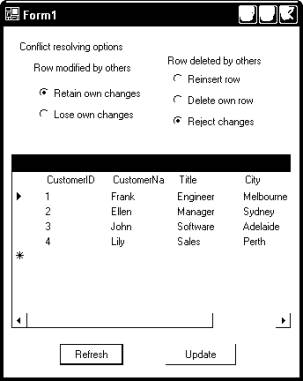
The code of
the application is as follow. Note that this application is a one-tier
application, with presentation and data access within one application. If they
are in different tiers, the conflict resolving rules should be sent from the
presentation to the data access tier together with the dataset containing data
to submit to database, and the RowUpdated event will be handled in data
access tier.
Dim mcn As New OleDbConnection("File Name=..\..\DataLink-Frank's-Customers.udl")
Dim WithEvents mda As New OleDbDataAdapter()
Dim mds As New DataSet()
Dim mdsDb As New DataSet()
Dim mdaConflict As New OleDbDataAdapter()
Private Sub Form1_Load(ByVal sender As System.Object, ByVal e As System.EventArgs) Handles MyBase.Load
Dim param As OleDbParameter
' Select
Command
mda.SelectCommand = New OleDbCommand("SELECT * FROM Customers", mcn)
' Update
Command
Dim updateCmd As New OleDbCommand("Customers_Update", mcn)
updateCmd.CommandType = CommandType.StoredProcedure
updateCmd.Parameters.Add("CustomerName_New", OleDbType.VarChar, 50, "CustomerName")
updateCmd.Parameters.Add("Title_New", OleDbType.VarChar, 50, "Title")
updateCmd.Parameters.Add("City_New", OleDbType.VarChar, 50, "City")
param = updateCmd.Parameters.Add("CustomerID_Orig", OleDbType.SmallInt, 2, "CustomerID")
param.SourceVersion = DataRowVersion.Original
param = updateCmd.Parameters.Add("TStamp", OleDbType.Binary, 8, "TStamp")
param.SourceVersion = DataRowVersion.Original
param.Direction = ParameterDirection.InputOutput
mda.UpdateCommand = updateCmd
' Insert
Command
Dim insertCmd As New OleDbCommand("Customers_Insert", mcn)
insertCmd.CommandType = CommandType.StoredProcedure
insertCmd.Parameters.Add("CustomerName", OleDbType.VarChar, 50, "CustomerName")
insertCmd.Parameters.Add("Title", OleDbType.VarChar, 50, "Title")
insertCmd.Parameters.Add("City", OleDbType.VarChar, 50, "City")
param = insertCmd.Parameters.Add("CustomerID", OleDbType.SmallInt, 2, "CustomerID")
param.Direction = ParameterDirection.Output
param = insertCmd.Parameters.Add("TStamp", OleDbType.Binary, 8, "TStamp")
param.Direction = ParameterDirection.Output
mda.InsertCommand = insertCmd
' Delete
Command
Dim deleteCmd As New OleDbCommand("DELETE FROM Customers WHERE CustomerID = ? AND TStamp = ?", mcn)
deleteCmd.Parameters.Add("CustomerID", OleDbType.SmallInt, 2, "CustomerID")
deleteCmd.Parameters.Add("TStamp", OleDbType.Binary, 8, "TStamp")
mda.DeleteCommand = deleteCmd
mda.ContinueUpdateOnError
= True
Try
mda.Fill(mds)
mds.Tables(0).PrimaryKey = New DataColumn() {mds.Tables(0).Columns("CustomerID")}
With mds.Tables(0).Columns("CustomerID")
.AutoIncrement = True
.AutoIncrementSeed = -1
.AutoIncrementStep = -1
End
With
mdg.DataSource = mds
mdg.DataMember = mds.Tables(0).TableName
Dim selectCmd As New OleDbCommand("SELECT * FROM Customers WHERE CustomerID = ?", mcn)
selectCmd.Parameters.Add("CustomerID", OleDbType.SmallInt, 2, "CustomerID")
mdaConflict.SelectCommand = selectCmd
Catch ex As Exception
MessageBox.Show(ex.ToString)
End Try
End Sub
Private Sub mda_RowUpdated(ByVal sender As Object, ByVal e As System.Data.OleDb.OleDbRowUpdatedEventArgs)
Handles mda.RowUpdated
If
e.Status = UpdateStatus.ErrorsOccurred AndAlso TypeOf (e.Errors) Is DBConcurrencyException Then
' mdaConflict is a data adapter used to query the database
for the conflicting row
mdaConflict.SelectCommand.Parameters("CustomerID").Value = e.Row("CustomerID")
Dim nRowsAffected As Integer = mdaConflict.Fill(mdsDb)
Dim rowsDb As DataRow() = mdsDb.Tables(0).Select("CustomerID = " & e.Row("CustomerID"))
' Resolving errors. rdbtnLose,
rdbtnReject, rdbtnReinsert etc. are radio buttons.
If
nRowsAffected = 1 Then '
Row modified by another user ...
If
rdbtnLose.Checked Then '
User chooses to give up his own changes
mds.Merge(rowsDb)
Else
' User chooses to retain his current-version changes
mds.Merge(rowsDb, True, MissingSchemaAction.Ignore)
End
If
Else
' Row deleted by another user ...
If rdbtnReject.Checked Then ' User chooses to
reject his changes and let the row stay in the dataset
Dim rowDs = mds.Tables(0).Rows.Find(e.Row("CustomerID"))
rowDs.RejectChanges()
ElseIf
rdbtnReinsert.Checked Then ' User chooses to reinsert this row into database
Dim items As Object() = e.Row.ItemArray
mds.Tables(0).Rows.Remove(e.Row)
Dim newRow As DataRow = mds.Tables(0).NewRow()
newRow.ItemArray = items
mds.Tables(0).Rows.Add(newRow)
Else
' User chooses to remove this row from his dataset
mds.Tables(0).Rows.Remove(e.Row)
End
If
End
If
' Prevent
DataAdapter from appending error message to RowError
e.Status = UpdateStatus.Continue
End If
End Sub
Private Sub btnUpdate_Click(ByVal sender As System.Object, ByVal e As System.EventArgs) Handles btnUpdate.Click
SubmitDataSet()
End Sub
Private Sub SubmitDataSet()
Try
mdsDb.Clear()
mda.Update(mds)
If
mds.HasChanges Then
mda.Update(mds)
End
If
Catch ex As Exception
MessageBox.Show(ex.ToString)
End Try
End Sub
Private Sub Refresh_Click(ByVal sender As System.Object, ByVal e As System.EventArgs) Handles Refresh.Click
mds.Clear()
mda.Fill(mds)
End Sub
Note: If you catch the RowUpdated
event and there is a concurrency violation on one row, the DataAdapter
will append an error message such as "Concurrency violation:
UpdateCommand affects 0 rows" to the end of its RowError
property AFTER the RowUpdated event handler returns. Therefore, if you
have resolved the conflict and want no error or warning sign shown on your
datagrid, what you should do is NOT to call the row's ClearErrors method
because there is no error message set yet, but to set the OleDbRowUpdatedEventArgs's Status property to UpdateStatus.Continue. When the handler returns, DataAdapter sees this Continue status and will not append any error message to the row's RowError property. As long as RowError is empty, this row appears to have
no error (see section Row and Column Errors).
5.12. Transaction Management
See my
article “.NET Transaction Management”.
6. ADO.NET & XML
6.1. DataSet’s Support of XML
DataSet has the following methods to
support XML:
1. GetXml: extracts the content of a dataset into a
string;
2. WriteXml: writes the content of a dataset into a file,
a Stream, a TextWriter or XmlWriter. You can can provide two parameters: the
file path and the XmlWriteMode, which can be DiffGram, IgnoreSchema
or WriteSchema:
ds.WriteXml(“test.xml”, XmlWriteMode.WriteSchema)
3. ReadXml: reads XML from a file, a Stream, a TextWriter
or XmlWriter.
If we
choose WriteSchema as the second
parameter to method WriteXml, the XML stream will contain both
schema and data:
<?xml version="1.0" standalone="yes"
?>
- <MyDataSetName>
- <xs:schema id="MyDataSetName" xmlns="" xmlns:xs="http://www.w3.org/2001/XMLSchema" xmlns:msdata="urn:schemas-microsoft-com:xml-msdata">
- <xs:element name="MyDataSetName" msdata:IsDataSet="true" msdata:Locale="en-AU">
- <xs:complexType>
- <xs:choice maxOccurs="unbounded">
- <xs:element name="Order_x0020_Details">
- <xs:complexType>
- <xs:sequence>
<xs:element
name="OrderID" type="xs:int" minOccurs="0" />
<xs:element
name="ProductID" type="xs:int" minOccurs="0" />
<xs:element
name="Quantity" type="xs:short" minOccurs="0" />
<xs:element
name="TStamp" type="xs:base64Binary" minOccurs="0" />
</xs:sequence>
</xs:complexType>
</xs:element>
</xs:choice>
</xs:complexType>
</xs:element>
</xs:schema>
- <Order_x0020_Details>
<OrderID>10248</OrderID>
<ProductID>11</ProductID>
<Quantity>12222</Quantity>
<TStamp>AAAAAAAAG1w=</TStamp>
</Order_x0020_Details>
- <Order_x0020_Details>
<OrderID>10248</OrderID>
<ProductID>42</ProductID>
<Quantity>10</Quantity>
<TStamp>AAAAAAAAFrY=</TStamp>
</Order_x0020_Details>
- <Order_x0020_Details>
<OrderID>10248</OrderID>
<ProductID>72</ProductID>
<Quantity>5</Quantity>
<TStamp>AAAAAAAAFrc=</TStamp>
</Order_x0020_Details>
</MyDataSetName>
If we
choose IgnoreSchema, only the data of the dataset will be written:
<?xml version="1.0"
standalone="yes" ?>
- <MyDataSetName>
- <Order_x0020_Details>
<OrderID>10248</OrderID>
<ProductID>11</ProductID>
<Quantity>12222</Quantity>
<TStamp>AAAAAAAAG1w=</TStamp>
</Order_x0020_Details>
- <Order_x0020_Details>
<OrderID>10248</OrderID>
<ProductID>42</ProductID>
<Quantity>10</Quantity>
<TStamp>AAAAAAAAFrY=</TStamp>
</Order_x0020_Details>
- <Order_x0020_Details>
<OrderID>10248</OrderID>
<ProductID>72</ProductID>
<Quantity>5</Quantity>
<TStamp>AAAAAAAAFrc=</TStamp>
</Order_x0020_Details>
</MyDataSetName>
If we
choose DiffGram, the current version of the dataset plus the original
version of those changed will be written:
<?xml version="1.0"
standalone="yes" ?>
- <diffgr:diffgram xmlns:msdata="urn:schemas-microsoft-com:xml-msdata" xmlns:diffgr="urn:schemas-microsoft-com:xml-diffgram-v1">
- <MyDataSetName>
- <Order_x0020_Details diffgr:id="Order
Details1" msdata:rowOrder="0"
diffgr:hasChanges="modified">
<OrderID>10248</OrderID>
<ProductID>11</ProductID>
<Quantity>12</Quantity>
<TStamp>AAAAAAAAG1w=</TStamp>
</Order_x0020_Details>
- <Order_x0020_Details diffgr:id="Order
Details3" msdata:rowOrder="2">
<OrderID>10248</OrderID>
<ProductID>72</ProductID>
<Quantity>5</Quantity>
<TStamp>AAAAAAAAFrc=</TStamp>
</Order_x0020_Details>
- <Order_x0020_Details diffgr:id="Order
Details6" msdata:rowOrder="4"
diffgr:hasChanges="inserted">
<OrderID>10248</OrderID>
<ProductID>51</ProductID>
<Quantity>17</Quantity>
</Order_x0020_Details>
</MyDataSetName>
- <diffgr:before>
- <Order_x0020_Details diffgr:id="Order
Details1" msdata:rowOrder="0">
<OrderID>10248</OrderID>
<ProductID>11</ProductID>
<Quantity>12222</Quantity>
<TStamp>AAAAAAAAG1w=</TStamp>
</Order_x0020_Details>
- <Order_x0020_Details diffgr:id="Order
Details2" msdata:rowOrder="1">
<OrderID>10248</OrderID>
<ProductID>42</ProductID>
<Quantity>10</Quantity>
<TStamp>AAAAAAAAFrY=</TStamp>
</Order_x0020_Details>
</diffgr:before>
</diffgr:diffgram>
A diffgram
enables us to submit the updated dataset in XML format to the database.
6.2. XmlReader
XmlReader handles the content of a XML
document as a stream. Each time method Read is called, it reads in one
node, which is a string enclosed in a pair of angle brackets “<>”.
The content of the node is parsed and stored in memory. When you access the Name,
Value or NodeType of the XmlReader, you are accessing
those of this “current” node. Once XmlReader has read in one node, the
node has been “consumed”. It can not go back to nodes already read. It can only
read forward.
System.Text.StringBuilder
sb = new System.Text.StringBuilder();
XmlTextReader xtr = new
XmlTextReader(@"..\..\..\Books.xml");
while(xtr.Read())
{
sb.Append(xtr.Name + " ");
if (xtr.HasValue)
{
sb.Append(xtr.Value + " ");
}
if (xtr.HasAttributes)
{
while (xtr.MoveToNextAttribute())
{
sb.Append(xtr.Name + " ");
if
(xtr.HasValue)
{
sb.Append(xtr.Value + "
");
}
}
}
}
6.3. XmlDocument & XmlNode
Unlike XmlReader,
XmlDocument does not treat the content of a XML document as a stream.
Instead it loads all the content of the document into memory.
All the
nodes in the XML hierarchy are represented by XmlNodes, which are linked
together using parent-child, sibling-sibling pointers. The DocumentElement
property of XmlDocument represents the root node of the document,
through which you can navigate to any other node. When you have one XmlNode
at hand, to navigate horizontally, use its property NextSibling or PreviousSibling;
to navigate vertically, use ParentNode or FirstChild.
These nodes
does not contain data themselves. They refer to the single copy of the XML
content in memory. You can insert new node, delete node, change the content of
a node, etc. These changes are done directly to that single copy of data. When
you call XmlDocument’s Save method, the changed data will be
saved into a XML file.
See the
following sample code. Class XmlToString.DocToString takes a XmlDocument
and iterates all of its nodes and puts all the content into the returned
string. Method NodeToString does similar job but only to child nodes of
the passed node. Form1.btnLoadXml_Click creates a XmlDocument, loads its
content from a XML file, and invokes XmlToString to display the content of
the XmlDocument.
public class XmlToString
{
private void GetNodeContent(XmlNode node, int indent, ref string astrContent)
{
for
(int i = 0; i < indent; i++)
astrContent += " ";
astrContent += "Node = " +
node.Name;
if
(node.Value != null)
astrContent += ", Value = " + node.Value;
if
(node.HasChildNodes && node.FirstChild.NodeType
== XmlNodeType.Text)
astrContent += ", InnerText = " + node.InnerText;
if
(node.Attributes != null && node.Attributes.Count > 0)
{
astrContent += ", Attributes = [";
for
(int i = 0; i < node.Attributes.Count; i++)
{
if
(i > 0)
astrContent += ",
";
astrContent += node.Attributes[i].Name + " = " +
node.Attributes[i].Value;
}
astrContent += "]";
}
astrContent += "\r\n";
}
private void IterateChildNodes(XmlNode node, int indent, ref string astrContent)
{
if
(node.HasChildNodes)
{
XmlNode childNode = node.FirstChild;
while
(childNode != null)
{
HandleNode(childNode, indent
+ 1, ref astrContent);
childNode = childNode.NextSibling;
}
}
}
private void HandleNode(XmlNode node, int indent, ref string astrContent)
{
GetNodeContent(node, indent, ref astrContent);
// Element
<Author>Silan Liu</Author> will still return true of HaschildNodes,
and its child node
// is of
type Text, which is the inner text. So in this case we shouldn't get the child
node.
if
(node.HasChildNodes && (node.HasChildNodes &&
(node.FirstChild.NodeType != XmlNodeType.Text)))
IterateChildNodes(node, indent, ref astrContent);
}
public string DocToString(XmlDocument doc)
{
string
strContent = "";
XmlNode
ndRoot = doc.DocumentElement;
HandleNode(ndRoot, 0, ref strContent);
return
strContent;
}
public string NodeToString(XmlNode node)
{
string
strContent = "";
HandleNode(node, 0, ref strContent);
return
strContent;
}
}
public class Form1 : System.Windows.Forms.Form
{
...
XmlDocument mdoc = new XmlDocument();
XmlToString mXmlToString = new XmlToString();
private void btnLoadXml_Click(object
sender, System.EventArgs e)
{
try
{
mdoc.Load(tbXmlDocName.Text);
tbDisplayDoc.Text =
mXmlToString.DocToString(mdoc);
}
catch
(Exception ex)
{
MessageBox.Show(ex.Message);
}
}
}
The XML
document “Books.xml” is:
<?xml version="1.0"
encoding="UTF-8" ?>
<Books>
<Book Publisher="http://www.programtutorials.tripod.com" Pages="1088" Language="English">
<Title>Inside ADO.NET</Title>
<Author Gender="Male" Country="Australia">Silan Liu</Author>
<CD Language="Chinese">
<Title>Sample Code for Inside ADO.NET</Title>
<Author Gender="Male" Country="Australia">Silan Liu</Author>
</CD>
</Book>
<Book Pages="978" Language="Chinese">
<Title>Inside PowerBuilder</Title>
<Author Gender="Female" Country="Australia">Yang Xie</Author>
<CD Language="English">
<Title>Sample Code for Inside PowerBuilder</Title>
<Author Gender="Female" Country="China">Mao Mao</Author>
</CD>
</Book>
<Book Pages="335" Language="Chinese">
<Title>Business in China</Title>
<Author Gender="Female" Country="China">Mao Mao</Author>
<CD>None</CD>
</Book>
<CD>
<Title>Come Away with me</Title>
<Author Gender="Female" Country="USA">Norah Jones</Author>
</CD>
</Books>
The output will be:
Node = Books
Node = Book, Attributes = [Publisher = http://www.programtutorials.tripod.com,
Pages = 1088, Language = English]
Node = Title, InnerText = Inside ADO.NET
Node = Author, InnerText = Silan Liu, Attributes = [Gender = Male, Country =
Australia]
Node = CD, Attributes = [Language = Chinese]
Node = Title, InnerText = Sample Code for Inside ADO.NET
Node = Author, InnerText = Silan Liu, Attributes = [Gender = Male, Country =
Australia]
Node = Book, Attributes = [Pages = 978, Language = Chinese]
Node = Title, InnerText = Inside PowerBuilder
Node = Author, InnerText = Yang Xie, Attributes = [Gender = Female, Country =
Australia]
Node = CD, Attributes = [Language = English]
Node = Title, InnerText = Sample Code for Inside PowerBuilder
Node = Author, InnerText = Mao Mao, Attributes = [Gender = Female, Country =
China]
Node = Book, Attributes = [Pages = 335, Language = Chinese]
Node = Title, InnerText = Business in China
Node = Author, InnerText = Mao Mao, Attributes = [Gender = Female, Country =
China]
Node = CD, InnerText = None
Node = CD
Node = Title, InnerText = Come Away with me
Node = Author, InnerText = Norah Jones, Attributes = [Gender = Female, Country =
USA]
If we
change the code to Form1_Load to the following:
XmlDocument
doc = new XmlDocument();
doc.Load("Books.xml");
XmlNode root
= doc.DocumentElement;
if (root.HasChildNodes)
{
XmlNode child = root.FirstChild;
if
(child.Attributes != null)
{
child.Attributes[0].Value = "10888";
doc.Save("Books.xml");
}
}
after
run, you will see the value of the “Pages” attribute of the first “Book”
element in “Books.xml” is changed to “10888”. This proves that XmlDocument can
also write back the changes.
6.4. XmlDataDocument
Even with
the help of XmlDocument, manipulating XML is still a very cumbersome
job, compared with working with our old friend – the cheerful and intelligent DataSet.
Besides, how can we bind a XML document with a control such as data grid?
That is the
purpose of XmlDataDocument, which inherits from XmlDocument, and
acts as a bridging between a XML document and a DataSet. You can create
a XmlDataDocument then get from it a DataSet, or vice versa.
After you’ve changed any one of them, the other one will be automatically
synchronized.
See the
following sample code.
DataSet
ds = new DataSet();
ds.ReadXmlSchema(@"DS.xsd"); // DS.xsd
contains the schema of the dataset
ds.EnforceConstraints
= false; // This is a must if you want to
change the content of the XmlDataDocument
XmlDataDocument doc = new
XmlDataDocument(mds);
doc.Load("Books.xml");
DisplayXmlDocument(doc);
mdg.DataSource
= mds;
mdg.DataMember
= mds.Tables[0].TableName;
After run,
the data grid will show the content of the dataset, while the text box will
show the content of the XmlDataDocument. If you then change anything in
the XmlDataDocument or the DataSet, the other one will be
automatically updated.
Note:
1.
After
the XmlDataDocument loads in the XML data, it is automatically loaded
into the dataset using its ReadXml method. Therefore, the content of the
XML data must comply to the XML schema that has been read into the dataset. If
they don’t match the data won’t be loaded into the dataset.
2.
The
dataset does not need to contain all the columns that are contained in the XML
document, just like when used on a database table.
With the help of XmlDataDocument, you do not need to directly manipulate
the XML document. You can deal with DataSet all the time, and let XmlDataDocument
do the translating.
6.5. XPath
In many
aspects, a XML document is a database. The DOM and its Visual Studio .NET
implementations, such as XmlReader and XmlDocument, are the DBMS
that allows you to retrieve and change data in the database. XmlDocument
enables us to move node by node in both ways, but it is not enough. We need the
ability to select a subset of elements using criteria, such as SQL query
select
Title, Author
from Books
where Pages
> 1000
XPath is
a XML language that does this job. In Visual Studio .NET, you can simply pass a
XPath expression as a string to XmlNode.SelectNodes, which will return a
list of nodes in the form of XmlNodeList, which conforms to the query.
The syntax
is quite simple:
1.
/ when
used in the beginning of the expression means the root element, while when used
after an element name means one level down that element;
2.
@ is
put in front of a name to indicate that it is an attribute – without it it is
an element;
3.
*
stands for any element;
4.
[ ] is
used to enclose filtering criteria;
5.
An
expression without filtering criteria means select all of such elements;
The following sample code and XML document is based on those in section XmlDocument & XmlNode:
private void btnRunQuery_Click(object
sender, System.EventArgs e)
{
try
{
XmlNodeList
nl = mdoc.DocumentElement.SelectNodes(tbXPath.Text);
string
strContent = "";
foreach
(XmlNode node in nl)
{
strContent +=
mXmlToString.NodeToString(node);
}
tbDisplayXPath.Text = strContent;
}
catch
(Exception ex)
{
MessageBox.Show(ex.Message);
}
}
The
following table shows the XPath query which is run on “Books.xml”:
Get all Author elements that are under
/Books/Book.
Result:
Node =
Author, InnerText = Silan Liu, Attributes = [Gender = Male, Country =
Australia]
Node =
Author, InnerText = Yang Xie, Attributes = [Gender = Female, Country =
Australia]
Node =
Author, InnerText = Mao Mao, Attributes = [Gender = Female, Country =
China]
Get all Author elements that are two
levels below /Books.
Result:
Node =
Author, InnerText = Silan Liu, Attributes = [Gender = Male, Country =
Australia]
Node =
Author, InnerText = Yang Xie, Attributes = [Gender = Female, Country =
Australia]
Node =
Author, InnerText = Mao Mao, Attributes = [Gender = Female, Country =
China]
Node =
Author, InnerText = Norah Jones, Attributes = [Gender = Female, Country =
USA]
Get all Author elements, on whatever
location.
Result:
Node =
Author, InnerText = Silan Liu, Attributes = [Gender = Male, Country =
Australia]
Node =
Author, InnerText = Silan Liu, Attributes = [Gender = Male, Country =
Australia]
Node =
Author, InnerText = Yang Xie, Attributes = [Gender = Female, Country =
Australia]
Node =
Author, InnerText = Mao Mao, Attributes = [Gender = Female, Country =
China]
Node =
Author, InnerText = Mao Mao, Attributes = [Gender = Female, Country =
China]
Node =
Author, InnerText = Norah Jones, Attributes = [Gender = Female, Country =
USA]
Get all Author elements which are under
a CD element, no matter which level the CD element is on.
Result:
Node =
Author, InnerText = Silan Liu, Attributes = [Gender = Male, Country =
Australia]
Node =
Author, InnerText = Mao Mao, Attributes = [Gender = Female, Country =
China]
Node =
Author, InnerText = Norah Jones, Attributes = [Gender = Female, Country =
USA]
Get all elements under /Books/Book elements.
Result:
Node =
Title, InnerText = Inside ADO.NET
Node =
Author, InnerText = Silan Liu, Attributes = [Gender = Male, Country =
Australia]
Node =
CD, Attributes = [Language = Chinese]
Node = Title, InnerText = Sample Code for Inside ADO.NET
Node = Author, InnerText = Silan Liu, Attributes = [Gender = Male, Country =
Australia]
Node =
Title, InnerText = Inside PowerBuilder
Node =
Author, InnerText = Yang Xie, Attributes = [Gender = Female, Country =
Australia]
Node =
CD, Attributes = [Language = English]
Node = Title, InnerText = Sample Code for Inside PowerBuilder
Node = Author, InnerText = Mao Mao, Attributes = [Gender = Female, Country =
China]
Node =
Title, InnerText = Business in China
Node =
Author, InnerText = Mao Mao, Attributes = [Gender = Female, Country =
China]
Node =
CD, InnerText = None
Get all Pagea attribute of all /Books/Boook
elements
Result:
Node =
Pages, Value = 1088, InnerText = 1088
Node =
Pages, Value = 978, InnerText = 978
Node =
Pages, Value = 335, InnerText = 335
Get all Gender attributes, wherever they
are.
Result:
Node =
Gender, Value = Male, InnerText = Male
Node =
Gender, Value = Male, InnerText = Male
Node =
Gender, Value = Female, InnerText = Female
Node =
Gender, Value = Female, InnerText = Female
Node =
Gender, Value = Female, InnerText = Female
Node =
Gender, Value = Female, InnerText = Female
Get all Author elements under
/Books/Book whose value is “Silan Liu”
Result:
Node =
Author, InnerText = Silan Liu, Attributes = [Gender = Male, Country =
Australia]
Ditto - Get all Author elements under
/Books/Book whose value is “Silan Liu”
Node =
Author, InnerText = Silan Liu, Attributes = [Gender = Male, Country =
Australia]
Get all Author elements whose Country
attributes are “China”.
Result:
Node =
Author, InnerText = Mao Mao, Attributes = [Gender = Female, Country =
China]
Get all Book elements that are under
/Books and whose Pages attribute is geater than 1000.
Result:
Node =
Book, Attributes = [Publisher =
http://www.programtutorials.tripod.com, Pages = 1088, Language = English]
Node = Title, InnerText = Inside ADO.NET
Node = Author, InnerText = Silan Liu, Attributes = [Gender = Male, Country =
Australia]
Node = CD, Attributes = [Language = Chinese]
Node = Title, InnerText = Sample Code for Inside ADO.NET
Node = Author, InnerText = Silan Liu, Attributes = [Gender = Male, Country =
Australia]
Get all Book elements that are under
/Books and whose Title starts with “Inside”.
Result:
Node =
Book, Attributes = [Publisher =
http://www.programtutorials.tripod.com, Pages = 1088, Language = English]
Node = Title, InnerText = Inside ADO.NET
Node = Author, InnerText = Silan Liu, Attributes = [Gender = Male, Country =
Australia]
Node = CD, Attributes = [Language = Chinese]
Node = Title, InnerText = Sample Code for Inside ADO.NET
Node = Author, InnerText = Silan Liu, Attributes = [Gender = Male, Country =
Australia]
Node =
Book, Attributes = [Pages = 978,
Language = Chinese]
Node = Title, InnerText = Inside PowerBuilder
Node = Author, InnerText = Yang Xie, Attributes = [Gender = Female, Country =
Australia]
Node = CD, Attributes = [Language = English]
Node = Title, InnerText = Sample Code for Inside
PowerBuilder
Node = Author, InnerText = Mao Mao, Attributes = [Gender = Female, Country =
China]
Get all Author elements that are under
/Books/Book whose Language attribute is “English”.
Result:
Node =
Author, InnerText = Silan Liu, Attributes = [Gender = Male, Country =
Australia]
6.6. XmlReader & SQL Server 2000’s Support on XML
If you
append “FOR XML AUTO, ELEMENTS” to the end of a SQL query (AUTO is to
name the element of each row after the table name, ELEMENTS is to store the
column values as XML elements – by default they are stored as attributes), SQL
server 2000 will return the result of the query in XML format. Such a query can
only be executed by the ExecuteXmlReader method of SqlCommand and
SqlXmlCommand, which returns a XmlReader.
A XmlReader
can be passed to DataSet.ReadXml to load its data into the dataset, or
to XmlDocument.Load to load its data into the XmlDocument.
The
difference between SqlCommand and SqlDataCommand on this aspect
is: the XmlReader returned by a SqlCommand does not have a root
node. If you want to read it into a dataset using its ReadXml method,
you have to pass XmlReadMode.Fragment as the second parameter. In
comparison, a XmlReader returned by a SqlXmlCommand is a complete
XML document, as long as you specify the root node using the command’s RootTag
property:
Dim cmd As New SqlXmlCommand(“SELECT * FROM Customers FOR XML AUTO, ELEMENTS”, strConn)
cmd.RootTag = “ROOT”
Dim rdr As XmlReader = cmd.ExecuteXmlReader
Dim xmlDoc As New XmlDocument()
xmlDoc.Load(rdr)
6.7. SQL XML .NET Data Provider
SqlXmlCommand belongs to Microsoft.Data.SqlXml
namespace, which is not part of .NET framework. The extra functionality
SqlXmlCommand provides are: you can send a XPATH query instead of a SELECT SQL
query to database to retrieve data, and submit changes to database using a
diffgram XML document.
When you
provide a XPATH to the command, it converts it to a “FOR XML” SQL query. When
you submit a diffgram, the command generates a batch of SQL queries wrapped in
a transaction. In both cases the command needs to know the schema of the table
to be able to generate those SQL queries, so you need to provide the command
with a XSD file:
' Retrieve data using XPATH
Dim cmd As New SqlXmlCommand(“Orders[CustomerID=’GROSR’]”, strConn)
cmd.SchemaPath = “C:\MySchema.xsd”
cmd.CommandType = SqlXmlCommandType.XPath
Dim rdr As XmlReader = cmd.ExecuteXmlReader()
mds.ReadXml(rdr)
' Do some changes
…
' Write the changed dataset into a DiffGram
mds.WriteXml(“C:\MyDiffGram.xml”, XmlWriteMode.DiffGram)
' Submit the DiffGram
cmd = New SqlXmlCommand(strConn)
cmd.SchemaPath = “C:\MySchema.xsd”
cmd.CommandType = SqlXmlCommandType.DiffGram
cmd.CommandStream = New FileStream(“C:\MyDiffGram.xml”, FileMode.Open, FileAccess.Read)
cmd.ExecuteNonQuery
7. Web Applications
7.1. Paging
¨ Paging with Web DataGrid
If the data
source contains all rows that will ever be displayed, a DataGrid which
is bound to the data source knows how to page through its rows. You only need
to set the following properties of the data grid:
·
AllowPaging: true
·
PageStyle.Mode: NextPrev
or NumericPages. Style of the navigation buttons.
·
PageStyle.Position: Top,
Bottom, TopAndBottom. Position of the navigation buttons.
·
PageSize: number
of rows that the data grid displays.
·
CurrentPageIndex: indicates
the page of data in the data source that is to be displayed by the data grid.
The first
four properties can be set once for all, in Property Builder at design time, or
in sub Page_Load at run time. The CurrentPageIndex property can
be set in PageIndexChanged event, which is fired when user clicks
a navigating button. Once CurrentPageIndex’s value changed, the data
grid will acquire the corresponding page of data in data source through the
data binding:
Private Sub gridCustomers_PageIndexChanged(
ByVal source As Object, ByVal e As System.Web.UI.WebControls.DataGridPageChangedEventArgs)
Handles gridCustomers.PageIndexChanged
daCustomers.Fill(tblCustomers)
gridCustomers.DataSource = vueCustomers
gridCustomers.CurrentPageIndex = e.NewPageIndex
gridCustomers.DataBind()
End Sub
Note
that because of the stateless nature of web application, each time an event
handler is called, it is called from a recreated new page. That’s why we have
to fill the dataset again.
As you can
see from the example, although each time the data grid only displays one page
of data, all data must be retrieved and stored in the data source. Thus it is
not efficient.
¨ Paging with overloaded DataAdapter.Fill
The
efficient way is to only fetch the current page of data from the database into
the data source. If you do this, and you still want to make use of the
navigation buttons and the PageIndexChanged event provided by the data
grid, you must set the its AllowCustomPaging property to true and VirtualItemCount
property to the total amount of rows available for display in the database.
Otherwise the data grid generates the navigation buttons according to the total
amount of rows in the bound data source, which in this case is always the
amount of one page.
There is
one overloaded DataAdapter.Fill, which takes the number of rows to skip
ahead and the number of rows to fill as the second and third parameter. Unlike
the Paging with DataGrid approach, the
data source is only filled with one page of data. However, the data adapter
still fetches all rows specified in the SQL query. So this approach is the same
inefficient, and it is less convenient because you have to take care of the
navigation issues yourself.
mda.Fill(mds, iNumRowsToSkip, iPageSize, strTableName)
¨ Paging Through SQL Query
Only paging
through SQL query can avoid fetching excessive data and reduce network traffic.
For Access and SQL Server database, we can use the “TOP” clause to achieve this
goal. The following SQL query fetches the 41~50 rows from the database:
SELECT TOP 10 CustomerID, CompanyName, ContactName, Country
FROM Customers WHERE CustomerID NOT IN
(
SELECT TOP 40 CustomerID FROM Customers ORDER BY Country, CustomerID
)
ORDER BY Country, CustomerID
7.2. Editing and Submitting Using Web DataGrid
Following
is a whole process for editing and submitting changes in a web application:
1.
When
user connects to the server for the first time, the web page queries the
database and acquires a result set such as a dataset, and uses it to generate a
HTML page and sends it to the user’s browser. If the server does not want to
query the database for every post-back, it should also store the result set
somehow:
private void Page_Load(object sender, System.EventArgs e)
{
...
da.Fill(tableOrders);
Session.Add("tableOrders", tableOrders);
dg.DataSource = tableOrders;
dg.DataBind();
}
2.
When
user clicks a button indicating that he wants to edit a field, if that field is
initially not shown editable, the web page should generate a new HTML page with
that field now showing editable.
Before all, for a DataGrid, if you want
a column to be editable, you should add it as a bound column in the datagrid’s
Property Builder, and add “Edit” and/or “Delete” button columns to it.
When the user clicks the “Edit” button, a EditCommand
event is fired, and the event’s Item property contains the DataGrid
row to be edited. Server can use this Item property’s ItemIndex
property to set the DataGrid’s EditItemIndex property. Then, when
the datagrid’s DataBind method is called, it will generate a new HTML
page, with the row indexed by EditItemIndex containing editable TextBoxes
for the editable columns:
private void dg_EditCommand(object source, System.Web.UI.WebControls.DataGridCommandEventArgs e)
{
dg.DataSource = (DataTable)Session["tableOrders"];
dg.EditItemIndex = e.Item.ItemIndex;
dg.DataBind();
}
3.
After
user has made the change, he clicks a button, the change is post back to the
server. The event handler of the button should either retrieve the result set
stored somehow by last page or make a new query to database to acquire a new
result set. Then it should get the changed row contained in the event, set it
into the result set, and update the database with the result set.
private void dg_UpdateCommand(object source, System.Web.UI.WebControls.DataGridCommandEventArgs e)
{
// Retrieve the table from Session
DataTable tableOrders = (DataTable)Session["tableOrders"];
int iRow = e.Item.ItemIndex + dg.CurrentPageIndex * dg.PageSize;
// i starts from 1: The edit/update button column shouldn’t be counted.
for (int i = 1; i < e.Item.Cells.Count; i++)
ds.Tables[TABLE_NAME].Rows[iRow][i - 1] = ((TextBox)e.Item.Cells[i].Controls[0]).Text;
//... create the data adapter da.
da.Update(tableOrders);
Session["tableOrders"] = tableOrders;
dg.DataSource = tableOrders;
dg.EditItemIndex = -1; // Setting it to –1 makes no row editable.
dg.DataBind();
}
The
CancelCommand event handler is very simple:
private void dg_CancelCommand(object source, System.Web.UI.WebControls.DataGridCommandEventArgs e)
{
dg.DataSource = (DataSet)Session["tableOrders"];
dg.EditItemIndex = -1;
dg.DataBind();
}